Category: Ai related

  • How to Start an AI Agency: Complete Guide (2026–2027)

    How to Start an AI Agency: Complete Guide (2026–2027)

    How to Start an AI Agency: Complete Beginner Guide (2026 to 2027)

    There was a moment early on that almost talked me out of this entire idea. Every video made it sound like the window had already closed thousands of people ahead of you, market already flooded. Then one evening, sitting in on a video call with a small business owner, she turned to her marketing person and asked, half joking: “Can someone just make the AI answer my messages for me?” Nobody said a word. That silence was more useful than any video I’d watched.

    This guide is what I wish someone had handed me back then. It covers what running an AI automation agency actually involves, why the timing still makes sense, what clients might pay and what you might charge, and how to build it without pretending to have skills you don’t yet have.

    This guide is what I wish someone had handed me back then. “How to Start Freelancing and Earn Money: A Beginner’s Honest Guide


    What This Kind of Business Actually Involves

    People often ask whether this means building chatbots from scratch or training your own AI models. It doesn’t not at the beginner level, anyway.

    Think of it as setting up systems that quietly run in the background. A tutoring center I spoke with was losing students simply because inquiries sat unanswered for eight to twelve hours. By the time a parent heard back, they’d already messaged two or three other places. Setting up a system that replied instantly and booked a trial class the same evening changed things fast.

    Response time research backs this up consistently the faster a business replies to an inquiry, the higher the chance it converts to a sale. That’s why something as unglamorous as an auto-reply can be genuinely valuable to a business owner, even when it sounds trivial from the outside.

    The owner never needed to understand how any of it worked. She just needed it to work. That’s the actual job, more often than people expect: turning a messy daily problem into something that runs on its own.


    Why the Timing Still Makes Sense

    A couple of years ago, most of these tools required some technical confidence just to get through the setup dashboard, let alone configure anything useful.

    That barrier has come down a lot. Awareness of AI is everywhere in the news, among competitors, and in family dinner conversations. But actual day-to-day usage among small businesses tells a different story. Thryv’s 2025 survey found that while 55% of small businesses reported using AI in some form, that figure includes one-time experiments. US Census Bureau data puts consistent operational use closer to 17–20%. The gap between “tried it once” and “built it into daily operations” is still enormous.

    That gap won’t stay this wide for long. Bigger software companies will eventually fold a lot of this into products that businesses can configure themselves. Right now, though, many smaller business owners want to sit across from a person who can explain things plainly, not read a setup guide alone at midnight. That’s the opening.



    Choosing Who You’ll Actually Help

    Early on, saying you can help with “anything related to AI” gives the other person nothing to latch onto. It usually costs you the conversation.

    A furniture store owner asking for AI-written Facebook ads sounds easy enough until the first draft comes out reading like a tech startup pitch instead of a family furniture shop. The tool only works as well as the direction you give it, and some industries need a lot of direction. On the flip side, a freelance photographer asking to automate photo editing might be something you could eventually figure out, but if it’s outside what you can support reliably, saying no is the right call even when it stings.

    Picking one type of business and one problem to start gives you something specific to say, something to practice, and something to point to. Target local real estate agents and focus on automating listing descriptions or lead follow-ups. That’s a narrow lane, but narrow lanes are where early momentum actually comes from.

    Quick reference: which service fits which client type

    Client Type Good First Service
    Real Estate Agents Listing descriptions, lead follow-ups
    Salons & Nail Studios Appointment reminders, booking replies
    Ecommerce Stores Customer support chat, order updates
    Coaches & Consultants Lead follow-ups, intake automation
    Local Service Businesses FAQ chatbot, inquiry responses

    Learning the Tools Before Talking About Them

    Every automation tool markets itself as the simplest one. In practice, they all behave a little differently once you’re connected to a real account and something goes wrong.

    Here’s how the main categories break down, with a few tools worth knowing in each.

    Tool Type Example Tools Best For Learning Curve Typical Cost
    AI Chat Assistants ChatGPT, Claude Writing replies, content, research Easy $0 to $20 per month
    Automation Platforms Make, Zapier Connecting apps and workflows Medium Low to medium
    Chatbot Builders Voiceflow, Botpress Customer service and bookings Medium Medium
    Voice AI Tools Vapi, Retell AI Phone call handling Medium to high Medium to high

    Automation platforms like Make and Zapier can link a wide range of apps without any code, which makes them useful for reminders, follow-ups, and anything repetitive. The catch is that they can break quietly when one of those apps updates its interface, and they’re sometimes slower than something built specifically for one task.

    This is what people mean when they say AI workflow automation: taking output from one tool and feeding it into another, so a person doesn’t have to copy and paste it manually every day.

    One thing worth learning early: always test on a tiny sample before pointing a workflow at real customer data. Running a welcome message sequence against an entire mailing list instead of just new entries is an easy, embarrassing mistake and hard to walk back once it’s started.


    A Simple Starting Toolkit

    Staring at a long list of tools is a fast way to do nothing. A small handful covers almost everything a beginner project actually needs.

    ChatGPT or Claude handle drafting replies, writing content, and thinking through how a workflow should sound before you build it. Make and Zapier are the two platforms most people start with, since both connect popular apps email, spreadsheets, messaging tools without writing code. Tidio works well for adding a basic chat widget to a small business website, and Voiceflow is worth looking at once you’re ready for something closer to a full conversational chatbot.

    Which one first? Honestly, it barely matters. Spending the first couple of months with just ChatGPT and Make nothing else is enough to deliver real work to a paying client. Most of these tools have free tiers that cover testing and your first unpaid project with room to spare.


    Creating Proof Before Anyone Pays You

    Without any finished work to show, every new conversation starts from zero trust. That’s a slow way to build. You can learn how to build a website with Claude AI for free

    One approach that tends to work: find a business you already have a connection to a friend’s shop, a service you use regularly and offer to build something for free. An automatic reply system for common Instagram questions, for instance, usually takes about a week. Before it’s set up, replies during busy periods might take three or four hours. Afterward, most questions get an answer within minutes, around the clock.

    The owner doesn’t pay anything. But a few weeks later, she mentions it to someone else. That conversation becomes a second client with no pitch from you at all.

    One real example, with a clear before and after, changes how people respond. It stops sounding like a sales pitch and starts sounding like something that already works.



    Setting Up the Boring but Necessary Parts

    This doesn’t need to be complicated, but leaving it undone catches up with you.

    A basic business registration, a separate bank account for income and expenses, and a short written agreement for each project cover most of what a beginner actually needs. A one-page document in Google Docs covering scope, timeline, and payment terms is enough for most early work. For payments, Stripe or PayPal handles things cleanly, including international clients, without much setup.

    One pattern worth knowing about early on: clients sometimes go quiet for weeks after a project is delivered, then pay eventually not because anything is wrong, but because running a small business is chaotic. Asking for part of the payment upfront removes that uncertainty before the project starts.


    Talking About Money Without Underselling Yourself

    There are three main ways people price this kind of work: a flat fee for a one-time setup, a monthly retainer for ongoing tweaks and support, or results-based pricing which sounds appealing but is genuinely hard to measure fairly in most situations.

    Here’s roughly where beginners tend to start, based on what’s realistic in the early months:

    Service Beginner Price Range
    AI Chatbot Setup $200 to $500
    Lead Automation $300 to $1,000
    Monthly Support $100 to $500

    These ranges shift based on location, complexity, and how much ongoing involvement is included. Treat them as a starting point, not a ceiling.

    When a client pushes back on price, the conversation usually shifts when you walk them through what the task currently costs in staff hours. A yoga studio owner who thinks a chatbot quote is steep for “just a chatbot” often sees it differently after calculating how much time her front desk spends answering the same five questions every day. You might still negotiate but now you’re negotiating around value, not just the number.

    Most beginners undercharge early on, and it’s almost never about skill. It’s nerves. That underpricing isn’t wasted it buys you the case studies and confidence to charge properly on the next one.


    Where Early Clients Actually Come From

    Most people assume they need ads or a big audience to find clients. The first few almost always come from somewhere much quieter.

    Walking into a local business just to talk is underrated. An owner who laughs and says “AI sounds expensive, I just have a phone” isn’t a dead end that response tells you exactly how to explain what you do more plainly, which helps in every future conversation.

    Referrals tend to snowball once they start. A hairdresser who mentions your work to her sister, who runs a nail salon nearby, becomes a new client without any direct effort from you.

    Short video clips showing something you’ve actually built a chatbot answering questions, a workflow running automatically also attract attention from business owners who can immediately see themselves using it. That’s different from reading a description of what you offer.
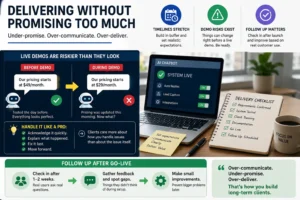


    Delivering Without Promising Too Much

    Timelines stretch more often than they compress, so build in buffer.

    Live demos are riskier than they look. A chatbot that answered test questions perfectly the day before might pull outdated pricing on the call because the client updated their price list that morning without saying anything. A few awkward seconds, a quick explanation, a fix within the hour. Most clients come away more reassured than annoyed, since they’ve just seen how fast things can be corrected.

    Following up a week or two after something goes live is also worth building into every project. Real customers ask things that nobody anticipated during setup, and small adjustments at that stage prevent bigger issues later.


    Common Mistakes and Challenges

    A few patterns come up again and again among people just starting out.

    Saying yes to work outside your actual strengths, just to avoid losing the lead. Running five tools when two would do the same job. Charging too little and eventually resenting the projects that result from it. Dropping a working toolset every few weeks to chase whatever’s trending. None of these are fatal, but they slow things down in ways that aren’t obvious until months later.

    Staying with one core toolset for a few months even an imperfect one builds more real speed than constantly switching.

    Further along, a different set of problems shows up. Client expectations can shift once a system is live, especially because the word “AI” tends to imply unlimited capability to people who haven’t worked with it. Tool costs can creep up as usage grows, particularly with platforms that charge per task. Workflows that ran perfectly during testing sometimes fail quietly after launch usually because something changed on the client’s side that nobody mentioned. And handling customer data (names, phone numbers, messages) means being straightforward with clients about what the tools store and where.


    Growing Past Working Alone

    At some point, the hours available stop matching the work coming in.

    Bringing someone in part-time for the technical setup side, while focusing your own time on client conversations and project management, is a natural move. The training takes longer than expected, mostly because much of what you know lives in your head rather than being written down. That’s worth fixing before you actually need to hand things off.

    Relationships with web designers and small marketing agencies can become a steady, low-effort source of work. An agency that sends automation work your way when clients ask, and gets design referrals back in return, is the kind of thing that builds slowly but keeps going on its own.


    Final Thoughts

    That silence on the call nobody having an answer to a basic request stuck around longer than the call itself. It wasn’t a dramatic insight. It just made the gap visible in a way that articles and videos hadn’t.

    The businesses that get the most out of this kind of automation aren’t the big ones. They’re the small businesses burning hours every week on things that repeat themselves the same questions answered again and again, the same listings written from scratch, the same follow-ups chased manually. Solving one of those problems for one type of business builds real experience, real case studies, and repeat work much faster than trying to help everyone with everything.

     

    FAQS


    Frequently Asked Questions (FAQs)


    Q1. Do I need a technical background to do this?

    Not really. Most beginner-level tools use visual, drag-and-drop setups rather than code. That said, being comfortable troubleshooting small issues on your own does matter over time things break, and clients expect you to fix them.


    Q2. How long until the first client?

    For some people, a few weeks. For others, several months usually because they’re still building confidence or waiting until they have something to show. The timeline tracks closer to outreach and proof of work than to technical ability.


    Q3. What if the first project doesn’t go perfectly?

    It probably won’t, and that’s fine. Small issues during testing or early use are normal. How you handle them tends to matter more to a client than whether everything ran flawlessly from day one.


    Q4. How do I know if a business needs this kind of help?

    Listen for repetitive tasks they mention doing manually answering the same questions, writing similar content, chasing the same follow-ups. Those are the clearest signals.


    Q5. How much can an AI agency realistically earn?

    Early on, most people bring in a few hundred to a couple thousand dollars per project, usually while keeping a day job. Once three to five retainer clients are in place, monthly revenue often lands between $3,000 and $8,000 more if the services are higher-touch. The ceiling tends to rise naturally as case studies build and referrals start moving on their own.


    Q6. Can this work alongside a full-time job?

    Yes, and it’s how most people start. Evenings and weekends are enough to take on one or two early projects while keeping income stable. The transition to full-time usually happens gradually, when client work starts competing seriously with the day job for time.
  • 3 Best AI SEO Tools for Beginners

    3 Best AI SEO Tools for Beginners

    3 Best AI SEO Tools for Beginners (Tested and Compared)


    Most beginner SEO guides tell you to “pick the right keywords” and “write quality content.” That advice is not wrong. It just skips the part where you figure out what quality actually looks like for a specific keyword on a specific site.

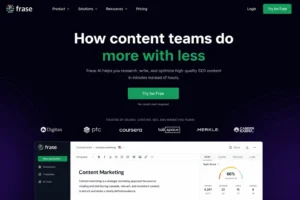
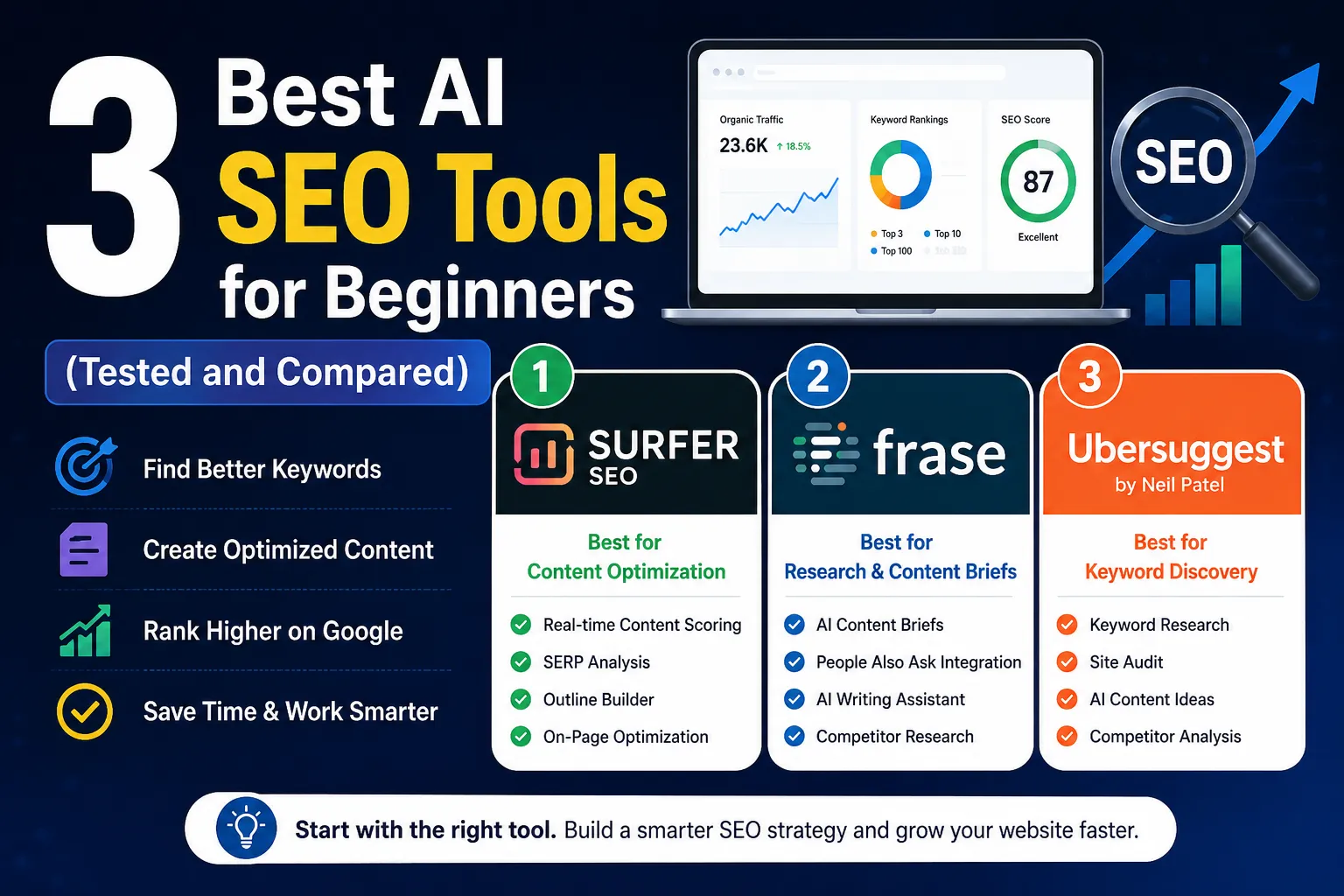
    After comparing several options available to beginners today, three tools stood out for different reasons: Surfer SEO, Frase, and Ubersuggest. Each one solves a distinct problem. Here is an honest look at what each does, what it costs, and who it genuinely makes sense for.


    Which AI SEO Tool Is Best for Beginners?

    For most beginners, Ubersuggest is the right starting point. It covers keyword research, basic site auditing, and content ideas in one place, with a free tier that costs nothing to try. Once you understand how keyword targeting works, Frase helps you plan and structure content more thoroughly. Surfer SEO makes the most sense when you are publishing consistently and want real-time on-page guidance. In short: start with Ubersuggest, add Frase next, and bring in Surfer SEO when your publishing volume justifies the cost.

    If you’re just starting a blog and still figuring out monetization, this guide connects directly with the practical side of SEO setup:
    How to start a blog and earn from AdSense in 2026-2027

    Once you understand how keyword targeting works, Frase helps you plan and structure content more thoroughly. Surfer SEO makes the most sense when you are publishing consistently and want real-time on-page guidance.


    Quick Comparison (See the Full Breakdown Below)


    Feature Surfer SEO Frase Ubersuggest
    Keyword Research No No  Yes
    Content Briefs Partial Yes  No
    On-Page Scoring Yes Yes  No
    Site Audit No No  Yes
    AI Writing Help Partial Yes  No
    Starting Price Higher range Mid range  Lower range
    Free Option No 7-day free trial  Yes
    Best For Content optimization Research and briefs  Keyword   discovery

    Note: Pricing details are accurate at the time of writing but may be subject to change. Always check each tool’s official website for the most current plans.


    Surfer SEO: On-Page Optimization Made Visual

    Surfer SEO is built around one core idea. It studies the top-ranking pages for your target keyword and tells you what they share in common. Word count, heading structure, semantic terms (words topically related to your main keyword), NLP phrases (Natural Language Processing phrases — words Google expects to see in a genuinely useful article), and more. All of it appears inside a content editor that scores your writing in real time as you type.

    I found this tool while working on a travel blog that was pulling zero organic visits. My articles were long and carefully written. That wasn’t the problem. The real issue was that I was missing entire subtopics that every competing page covered.

    For one article on budget travel in Southeast Asia, Surfer showed that I had no section on local SIM cards, no mention of visa-on-arrival rules, and nothing about shared transport apps. All three appeared on every top-ranking page. After expanding the article to cover those missing areas, rankings improved noticeably over the following weeks. That result was specific to a low-competition keyword on a newer site. Outcomes vary depending on your niche, domain history, and backlinks.

    The SERP Analyzer is worth learning early. It shows what the top ten results have in common — competitor word counts, backlink data, content structure — giving you a realistic read on what it takes to compete before you invest hours writing.


    What works well:

    • Real-time content scoring while you write
    • Outline builder that surfaces missing subtopics
    • SERP analysis showing competitor data at a glance


    What could be better:

    • The dashboard feels cluttered when you first log in
    • Pricing is on the higher side — the full Content Editor plan runs between $79 and $99 per month depending on billing cycle. Check the official site for current plans

    Pro Tip: Before you start writing, use the SERP Analyzer to check if the top-ranking pages all have thousands of backlinks. If they do, no amount of on-page optimization will help a brand-new site compete for that keyword. Move to a less competitive variation first.


    Best for: Writers who understand basic SEO concepts and want data-backed guidance on what to include before they publish.


    Frase: Do the Research Before You Write a Single Word

    Most beginners skip the research phase entirely. I was one of them for a long time. I would pick a keyword, open a blank document, and start writing whatever came to mind. Frase taught me that the most important thirty minutes happen before you type anything.

    When you enter a keyword, Frase builds a content brief automatically. It pulls headings, common questions, related subtopics, and short summaries from the top-ranking pages. Within a few minutes, you have a clear map of what Google already considers a thorough answer to that search query.

    From my experience, the biggest value is not the AI writing assistant. It is the People Also Ask integration. Frase pulls real PAA questions (the dropdown questions Google shows under search results) for your keyword and organizes them by how often they appear. Featured snippet placements and PAA boxes are often more accessible for newer sites than trying to reach position one through sheer competition.

    One thing that became obvious after using Frase consistently: the briefs kept revealing angles I would have missed on my own. While building a content plan for a nutrition site, I looked up “meal prep for beginners.” My original outline had six sections. The Frase brief showed eleven distinct subtopics appearing across the top results, and three of them carried their own PAA questions. That extra layer of research shaped a noticeably stronger article.


    What works well:

    • Fast, detailed briefs built from real competitor content
    • PAA question integration for snippet targeting
    • AI writing assistant that helps you get past a blank page


    What could be better:

    • AI-generated paragraphs need significant rewriting before publishing
    • Briefs on very simple keywords sometimes feel repetitive

    Pro Tip: Do not use Frase to write your article. Use it to build your outline and identify the questions your audience is actually asking. Write the content yourself. That combination produces far more natural, readable output than anything the AI drafts alone.

    Pricing: The Starter plan runs around $49 per month, or roughly $39 per month on an annual plan. Frase now offers a 7-day free trial with no credit card required — worth taking just to run two or three briefs and judge the quality before committing. Always verify current rates on their official website.


    If you are trying to build a structured SEO content system (not just random articles), this connects directly with broader SEO strategy building:
    Complete SEO guide for beginners 2026-2027

    The biggest value is “People Also Ask” integration, which reveals real user intent.


    Ubersuggest: The Right Starting Point for Beginners


    Surfer and Frase both assume you already have a keyword picked out. Ubersuggest helps you find one.

    Built by Neil Patel, the tool covers keyword research, competitor analysis, content ideas, and site auditing in one dashboard. The interface is simple by design. You type a keyword, and it returns search volume, keyword difficulty (how hard it is to rank for that term), CPC data (cost per click — what advertisers pay for that keyword, which signals commercial intent), and related keyword suggestions.

    What surprised me most when I first started using it was the Keyword Difficulty score. It runs from zero to one hundred. Green means low competition. Red means you are unlikely to rank without a strong existing domain. Early on, I kept chasing keywords with a difficulty above 65. Those pages went nowhere. After shifting focus to keywords under 30, I started seeing pages move into the top twenty within a reasonable window.

    The AI content ideas section is newer and quietly useful. It suggests specific article angles based on your keyword, pulling from topics currently generating traffic. While working on a productivity site, it surfaced “time blocking for people with ADHD” as a low-difficulty keyword with growing interest. That article performed well relative to other pages on the same site. Whether your results look similar will depend on your niche and how well the content is written.

    The site audit tool is what most beginners overlook. They should not. I ran one on a client website and turned up 34 pages with missing title tags and 19 with duplicate meta descriptions. That kind of technical debt (behind-the-scenes website errors that quietly suppress rankings) was dragging down multiple pages simultaneously. Ubersuggest ranked every issue by priority, so the most damaging fixes came first.


    What works well:

    • Color-coded keyword difficulty that beginners can act on immediately
    • Site audit that surfaces technical SEO errors in plain language
    • AI content ideas for finding specific, lower-competition topics
    • Free tier for casual use


    What could be better:

    • Data depth is thinner compared to higher-priced tools like Ahrefs or Semrush
    • The free version hits its daily search limit quite quickly

    Pro Tip: Do not only look at search volume when picking keywords. A keyword with 200 monthly searches and a difficulty of 18 will move faster for a new site than one with 5,000 searches and a difficulty of 72. Focus on the SD score first. For brand-new sites, target keywords with an SD below 25, even if the volume feels modest.

    Pricing: Free tier available. Paid plans are among the more affordable options in this category. A lifetime deal option sometimes appears as a one-time payment. Visit the official site for current pricing before committing.


    The Workflow That Actually Made Sense

    After testing different combinations over several months, I settled into a three-step sequence.

    Start in Ubersuggest. Find a keyword with low difficulty and realistic search volume for your site’s current authority. Move into Frase to build the content brief, understand what a complete answer looks like, and identify the questions people are actually asking around that topic. Write the full draft. Then bring it into Surfer SEO for on-page scoring, checking for missing terms or subtopics before you publish.

    That sequence covers the three gaps most beginners hit: not knowing what to write about, not knowing how to structure it, and not knowing whether it is actually ready to compete.


    When These Tools Are Not the Right Fit

    This is something most reviews skip entirely, so worth saying directly.

    If you are running a hobby blog with no plans to monetize, the combined cost of these tools is hard to justify. If your site has fewer than five published articles, keyword research tools will not fix the gap — you need more content first. If your budget is very tight and you are choosing between these tools and time to actually write, spend the money on time.

    Tools sharpen a process that already exists. They do not create one from scratch.


    A Note on Expectations

    SEO results for a new site typically take several months before organic traffic becomes visible. That timeline depends on niche competition, domain history, and how consistently you publish. No tool shortens that timeline significantly. What these tools do is reduce wasted effort — so the months you spend actually move you somewhere.

    Start with one tool. I used Ubersuggest alone for the first two months, and that was the right call. Adding complexity before you understand the basics is a reliable way to stay confused.


    Final Thoughts

    Picking the right tool matters less than people think. What matters more is actually using one consistently enough to learn something from it.

    Ubersuggest is where most beginners should start. It is affordable, readable, and covers the fundamentals without overwhelming you on day one. Once keyword research starts making sense, Frase helps you go deeper on content planning. Surfer SEO earns its place when you are publishing enough that on-page guidance actually speeds things up.

    None of these tools are magic. SEO is slow work regardless of what software you use. But the difference between publishing blindly and publishing with a clear picture of what you are trying to compete with — that gap is real. These tools close it.

    Pick one. Learn it properly. Add the next one when you genuinely need it.


    FAQS

    Frequently Asked Questions (FAQs)


    Q1. Is Surfer SEO worth the cost for a brand-new blog?

    It depends on how frequently you publish. If you are writing two or more articles per week and want structured guidance on each one, the investment makes sense over time. For someone publishing once or twice a month, the cost is harder to justify at the early stage.


    Q2. Can Frase replace a human content strategist?

    Not fully. It organizes research quickly and surfaces competitor data well. But deciding which topics align with your actual audience, what tone fits your brand, and how individual pieces connect across a broader content plan still requires human judgment. Think of it as a research tool, not a strategy replacement.


    Q3. Does Ubersuggest work for local SEO?

    Yes, within limits. You can filter keyword data by country and find location-based search volume. It covers the basics for small businesses targeting city-level terms. For granular local SEO work, tools built specifically for that purpose go deeper.


    Q4. Which tool makes the most sense on a tight budget?

    Start with Ubersuggest’s free tier. It handles early keyword research and basic site auditing without any cost. Once your site gains traction, the Frase starter plan is a practical next step for content planning.


    Q5. Do any of these tools help with technical SEO?

    Ubersuggest handles surface-level technical auditing well — broken links, slow load times, missing metadata, and duplicate content. Surfer and Frase focus almost entirely on content quality. For deeper technical work like crawl analysis or structured data issues, a dedicated tool like Screaming Frog covers that ground more thoroughly.


    Q6. Are free SEO tools enough for beginners?

    For the very first stage, yes. The Ubersuggest free tier gives you keyword data, basic competitor insights, and a site audit at no cost. Google Search Console is also free and shows which queries your site is already appearing for. These two free options together are enough to build a foundation and understand what SEO data looks like in practice. Paid tools become worth considering once you are publishing regularly and want deeper guidance on content structure and on-page optimization.

  • ChatGPT vs Gemini: Which Is Better for Content Writing and Image Generation

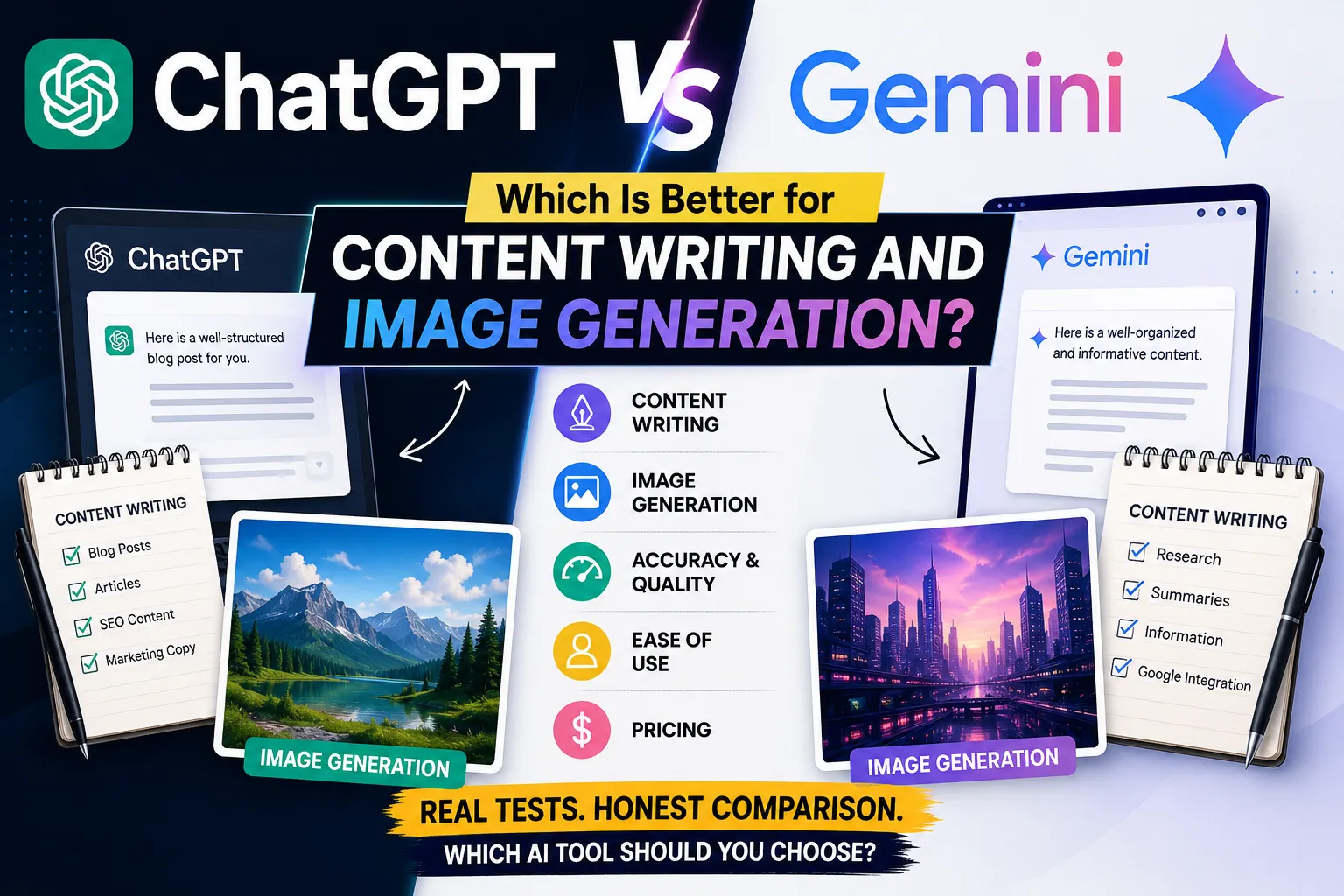
    ChatGPT vs Gemini: Which Is Better for Content Writing and Image Generation

    ChatGPT vs Gemini: Which One Is Better for Content Writing and Generating Images?


    Table of Contents

    • Introduction
    • Quick Side-by-Side Overview
    • What ChatGPT Actually Is
    • What Gemini Actually Is
    • Writing Quality
    • SEO Content and Blog Writing
    • Long-Form Articles
    • Creative Writing and Marketing Copy
    • Image Generation
    • Image Editing
    • Who Should Use Which Tool
    • Pricing
    • ChatGPT: Pros and Cons
    • Gemini: Pros and Cons
    • Alternatives
    • Category Winners Summary
    • Frequently Asked Questions
    • Final Thoughts


    Introduction

    I had both tools open at the same time. Laptop getting warm, two browser tabs, same prompt pasted into each. I was not trying to write a review. I just wanted to know which one I would actually reach for on a Monday morning when something needed to get done.

    Turns out the answer is messier than most comparison articles admit.

    Neither tool is useless. Neither is perfect. What I found after running the same tasks through both for several days is that they are genuinely different in ways that matter depending on what kind of work you do. The blog-writing person and the research-heavy person should probably land on different answers.

    To keep things fair, I used the same prompts across both platforms the entire time. Same brief for blog posts. Same scene description for images. Same email copy request. Same long article outline. I also spread the tests over multiple days rather than doing everything in one afternoon, because I wanted to catch inconsistencies rather than lucky good days.

    Everything in this article is from that process.


    Quick Side-by-Side Overview

    Task ChatGPT Gemini
    Blog and article writing Excellent Good
    Long-form content Excellent Fair
    Creative and marketing copy Excellent Good
    Research and fact organization Very Good Excellent
    Image generation Excellent Very Good
    Complex prompt accuracy Excellent Good
    Editing existing content Excellent Fair
    Google Docs and Drive integration Limited Excellent
    Idea generation Excellent Very Good
    Ease of use for beginners Excellent Very Good

    The short version: Gemini is stronger when you need to organize information or work inside Google’s tools. ChatGPT is stronger when you need something written, edited, or turned into an image. That split covers most of the real differences.


    What ChatGPT Actually Is

    ChatGPT is built by OpenAI. The “answering questions” reputation it has is a bit reductive at this point. It writes full articles, handles long editing sessions, generates images, helps with code, and holds context across a conversation in a way that actually changes how useful it is for complex work.

    The context piece is what I kept coming back to during testing. Give it a detailed brief, refine it across a few messages, and it does not forget what you told it three messages ago. That sounds minor until you are eight exchanges into a project and it still knows the tone, the audience, and the constraints you laid out at the start.


    What Gemini Actually Is

    Gemini is Google’s AI model. The more important thing to know is that it is woven into Google’s products in a way that no third-party tool can match right now. Gmail, Docs, Drive, Sheets — Gemini can work inside all of them rather than alongside them.

    For pulling information together fast or summarizing a long document before you start writing, it is genuinely quick and clean. Where I found it less reliable was when I needed the output itself to be engaging rather than just accurate. Accurate and readable are different things, and Gemini does not always close that gap automatically.


    Writing Quality: Which One Reads Better?

    I gave both tools an identical brief: write a 400-word opening section for a travel article about solo trips in Southeast Asia.

    ChatGPT opened with a specific moment. A night market. The smell of grilled meat. Then it widened out into why solo travel in that region is different. You wanted to keep reading.

    Gemini opened with: “Southeast Asia is one of the most popular destinations for solo travelers worldwide.” Which is true. And reads like a Wikipedia entry.

    That gap showed up consistently across different formats. ChatGPT tends to write like someone telling you something. Gemini tends to write like someone reporting something. Both have their place, but if your content needs people to actually stay on the page, the difference is real.


    SEO Content and Blog Writing

    Good SEO writing is not really about keywords anymore. It is about giving someone the answer they came for, in a structure that makes sense, without padding. Search engines have gotten reasonably good at detecting when a page is just filling space.

    ChatGPT handled structured SEO briefs well in testing. Ask for an H1, three H2s with subpoints, a FAQ block, and a meta description, and it delivers all of it in the right order. The sections stay on topic. The FAQ questions are relevant rather than generic.

    Gemini sometimes merged sections, skipped the meta description, or needed an extra message to get the structure right. Not a dealbreaker for occasional use, but if you are publishing multiple times a week, that extra correction step adds up over time.

    If you want to go deeper into proper optimization techniques, “Complete SEO guide for beginners 2026-2027 explains how to structure and rank content step by step.


    Long-Form Articles

    This is where things got more interesting.

    For pieces under 800 words, the gap between the two tools is manageable. Past 1,500 words, ChatGPT pulls ahead noticeably. The sections connect. The voice does not shift mid-article. The argument builds toward something rather than just accumulating paragraphs.

    With Gemini, I noticed tone drift in longer pieces. Not dramatically — but section three would be slightly more formal than section one, or an idea introduced early would reappear later in different wording as if the earlier mention had not happened. For a 500-word post this is barely worth mentioning. For a 2,000-word guide being published under your name, it creates editing work you would not otherwise have.


    Creative Writing and Marketing Copy

    Marketing copy is where I have a strong opinion, because I have spent time actually using both for this.

    Subject line test: I asked each tool for three email subject lines for a campaign promoting a productivity app aimed at freelancers.

    ChatGPT’s three: a direct one, a curiosity-gap one, and a benefit-forward one. Actually different from each other.

    Gemini’s three: all started with action verbs, all roughly the same structure, one literally used the word “boost” twice across the three options.

    Headline variety matters because you are trying to reach different people at different moments. If all your options sound like variations of the same sentence, you are not really testing anything.

    ChatGPT is better at this. That is not a close call based on what I saw.


    Image Generation: What Each Tool Can Do

    I tested both with a detailed prompt: a freelancer working at a wooden desk, natural light coming from the left, a plant on the right side of the desk, laptop open, coffee mug to the right of the keyboard, and a minimal background.

    ChatGPT placed nearly every element where I put it. The light came from the left. The plant was on the right. The composition read as intentional.

    Gemini got the general vibe but simplified the specifics. The plant ended up somewhere in the general background area. The lighting was flat. It looked like a home office, but not the one I described.

    For a generic stock-style image, that difference does not matter. For a branded visual where the details are part of the brief, it does. Art directors and brand-conscious creators will notice this faster than casual users.


    Text in Images

    Both tools still struggle with text inside generated images. This is a known limitation across the industry right now, not specific to either platform.

    For short, simple text on a clean background, ChatGPT tends to produce more legible results. Anything involving multiple lines, specific fonts, or precise placement is still hit-or-miss on both sides. Worth knowing before you plan a thumbnail workflow around either tool.


    Image Editing

    This came up more than I expected during testing.

    When I needed to make a series of changes to a generated image — adjust the background, change a color, remove one element — ChatGPT handled the back-and-forth better. Each follow-up instruction built on what came before without losing track of earlier changes.

    Gemini handled single-step edits reasonably well. Multi-step sessions were where it started dropping earlier context. Not every time, but enough times that I noticed a pattern.


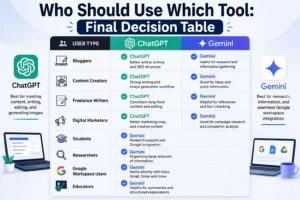
    Who Should Use Which Tool: Final Decision Table

    User Type Recommended Tool Main Reason
    Bloggers ChatGPT More consistent writing quality and SEO structure
    Students Gemini Research organization and Google Docs integration
    Digital marketers ChatGPT Stronger creative copy and image generation accuracy
    Researchers Gemini Better at organizing large amounts of information quickly
    Content creators ChatGPT Full workflow from writing to image assets in one place
    Google Workspace users Gemini Native integration with Docs, Drive, and Gmail
    Freelance writers ChatGPT Long-form consistency and less post-editing required
    Educators and teachers Gemini Fast summaries and organized explanations

    The pattern that kept showing up: people who primarily produce content land better with ChatGPT. People who primarily process and organize information land better with Gemini.


    Pricing: What You Actually Pay

    Most comparison articles skip pricing or bury it. It should not be buried because the free tiers of both tools are meaningfully different from the paid ones.

    ChatGPT

    The free version gives you access to GPT-4o with daily usage caps. Image generation and voice mode are included but limited. ChatGPT Plus is $20 per month, removes most caps, adds priority access when servers are busy, and unlocks better image quality. There is also a Team plan ($25-30 per user monthly) for shared workspaces, and an Enterprise tier with custom pricing for larger organizations.

    For individual creators doing regular work, the $20 Plus plan is where the tool becomes practical for daily use. The free version is solid for evaluation but you will hit the limits if you are trying to produce content consistently.

    Gemini

    The free version is available through Google’s apps and handles basic tasks well enough. Gemini Advanced is included in Google One AI Premium at $19.99 per month. That plan also bundles 2TB of Google storage and deeper integration across Gmail, Docs, Sheets, and Meet.

    The storage bundle changes the math for a lot of people. If you are already paying for Google One storage, the AI Premium plan might replace that cost rather than add to it.

    Value comparison


    Plan type ChatGPT Gemini
    Free access Yes, with daily limits Yes, basic features
    Paid plan cost $20/month (Plus) $19.99/month (AI Premium)
    What paid unlocks Higher image quality, fewer limits, priority access Advanced model, full Google integration, 2TB storage
    Best value for Standalone content and image work Google Workspace users who want AI built in

    Pricing can change. Check the current plan pages before subscribing since both companies have updated their tiers multiple times.


    ChatGPT: What Works and What Does Not

    Strengths:

    • Writing quality holds up in long-form content without tone drift
    • Image prompts with multiple specific elements are followed more accurately
    • Multi-step editing sessions retain context across many exchanges
    • SEO-structured content comes out correctly formatted on the first attempt
    • Creative copy variations are genuinely different from each other

    Weaker spots:

    • A few genuinely useful features still sit behind the paid plan
    • Anything involving recent events or current data still needs fact-checking

    Gemini: What Works and What Does Not

    Strengths:

    • Summarizing large amounts of information quickly and clearly
    • Working inside Google Docs, Drive, Gmail without switching tabs
    • Organizing research into categories before writing begins
    • Fast responses on information-dense tasks

    Weaker spots:

    • The default writing tone leans informational rather than readable
    • Long articles develop tone inconsistencies that need editing
    • Detailed image prompts sometimes get simplified in the output

    How to Decide Which One to Use

    If your work is mostly creating articles, copy, visuals, and content calendars, ChatGPT handles that workflow more completely.

    If your work is mostly researching, summarizing, or working inside Google’s tools, Gemini fits more naturally.

    If the budget allows, running both in sequence (Gemini for the research phase, ChatGPT for the writing and image phase) actually removes most of the weaknesses from each. It takes some setup but it works.


    Are There Other Options Worth Considering?

    ChatGPT and Gemini are the most visible options right now but they are not the only ones doing serious work.

    Claude (by Anthropic)

    Claude is the alternative I would point a writing-heavy user toward first. It is particularly good at handling long documents and following nuanced instructions without drifting. If you paste in a draft and ask for targeted feedback, the response tends to be more specific than what you get from other tools. Free tier available, paid plan at $20 per month.

    Also, you can explore the comparison between “ChatGPT VS Claude AI” to see how different AI models perform in writing tasks.

    Microsoft Copilot

    Copilot lives inside Microsoft 365. For anyone whose work happens in Word, Excel, PowerPoint, or Outlook, it removes the friction of toggling between an AI chat and the actual application. Solid for practical writing tasks. Less strong on creative work compared to ChatGPT. Available through Microsoft 365 subscriptions.

    Perplexity AI

    Perplexity works differently from the others. It pulls live information from the web and shows you its sources. This makes it valuable for research and fact-checking, especially on topics that change quickly. It is not the right tool for drafting polished content, but for the research phase before writing starts, it is one of the more reliable options available. Free tier exists, Pro plan around $20 per month.


    Category Winners at a Glance

    Category    Winner
    Blog writing   ChatGPT
    SEO content   ChatGPT
    Long-form articles   ChatGPT
    Creative and marketing copy   ChatGPT
    Research and fact organization   Gemini
    Google Workspace integration   Gemini
    Image generation   ChatGPT
    Image editing   ChatGPT
    Beginner friendliness   Tie
    Overall for content creators   ChatGPT

    FAQS

    Frequently Asked Questions

    Q1. Is ChatGPT or Gemini better for writing blog posts?

    ChatGPT produces more readable blog content, especially past 1,000 words. Gemini can handle the task but the output often needs more editing before it reads naturally.

    Q2. Can Gemini generate images the same way ChatGPT does?

    Both offer image generation. ChatGPT follows detailed, multi-element prompts more accurately. Gemini performs better on simpler image descriptions where the specifics matter less.

    Q3. Do I need a paid plan to use these tools effectively?

    The free tiers are usable for trying things out. For consistent daily work — publishing regularly, generating images, handling long sessions — the paid plans remove enough friction to justify the cost for most active users.


    Final Thoughts

    I went into this expecting a cleaner answer. What I came out with is more practical.

    ChatGPT is the better choice for producing content. Writing, image work, marketing copy, long-form articles. If that describes most of what you do, the decision is fairly clear.

    Gemini is the better choice for people inside Google’s world. Research, organizing information, working directly in Docs and Drive. For those users, the integration alone changes the workflow in ways that matter.

    What I would actually suggest: run your own real tasks through both before committing to either. Not a test prompt you found in an article. The exact kind of work you do every week. See which output needs less fixing. That is the only comparison that actually tells you something.

  • How to Generate Code With AI: Complete Guide!

    How to Generate Code With AI: Complete Guide!

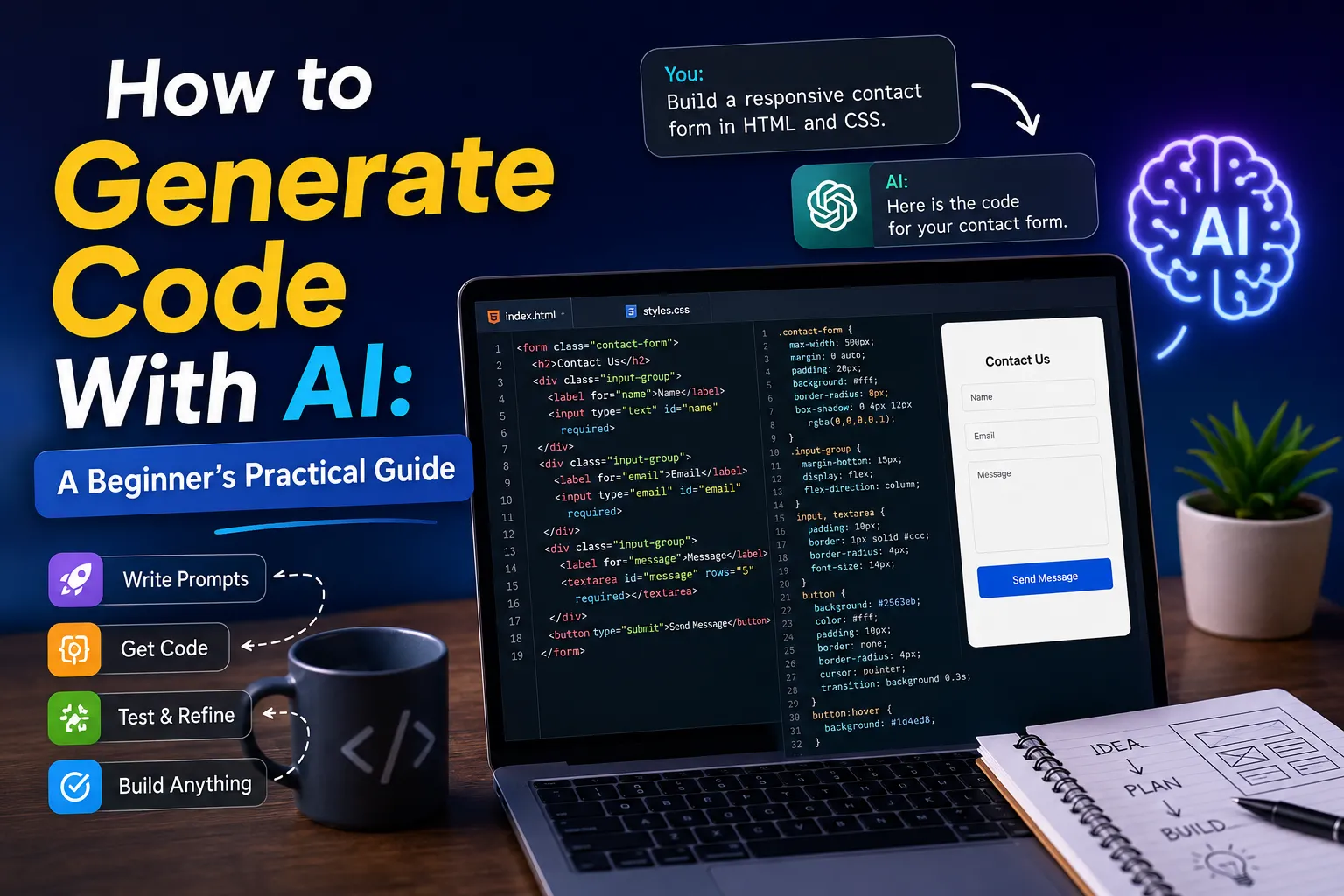
    How to Generate Code With AI: A Beginner’s Practical Guide


    Not long ago, building a working app without a computer science background felt like climbing a wall with no footholds. I spent weeks just trying to understand basic HTML before I could place a button on a screen. Then I started using AI for coding, and everything shifted.

    The first time I asked an AI assistant to build a calculator, I braced for broken snippets and confusion. What came back was clean, functional code with comments walking me through each part. That was the moment I stopped thinking of AI as a glorified search engine.

    Whether you want a portfolio site, a browser extension, or a script that kills repetitive tasks, AI gets you moving at a completely different pace.

    AI gets you moving at a completely different pace. You can even use it to build websites, as shown in my guide on How to Build a Website with Claude AI for Free.


    What AI Code Generation Actually Means

    Plain English goes in. Working code comes out.

    No memorizing syntax rules. No staring at a blank file wondering where to start. You describe what you want, the AI puts together a draft, and you test and improve from there.

    From my experience, beginners pick things up faster this way than grinding through documentation. Type “build a responsive contact form in HTML and CSS” and you have a working layout in seconds. Compare that to reading spec sheets for two hours before writing a single tag.


    Why This Even Matters If You Are Not a Developer

    Old-school programming had a real barrier. You needed to understand data types, language rules, and syntax before you could build anything that actually ran. Miss one semicolon and the whole thing breaks. The error message usually tells you nothing useful.

    AI clears most of that out of the way. You focus on what you are trying to build instead of fighting the language itself.

    That said, I found early on that knowing a little still pays off. When the generated code acts strange, having even a basic feel for the language helps you figure out why. It is the difference between staring at the problem and actually solving it.


    The Tools Worth Knowing About

    After running different combinations across several projects, four tools kept showing up as genuinely useful.

    Tool Best For Weakness
    ChatGPT General coding, scripts, APIs, beginner explanations Sometimes generates outdated syntax
    Claude Large files, bug spotting, and architectural review Less real-time editor integration
    GitHub Copilot In-editor autocomplete, inline suggestions Needs existing coding knowledge to use well
    Gemini Code explanation, JavaScript debugging Can hallucinate on complex logic

    None of these are perfect. Each one has a specific strength. ChatGPT handles broad requests without much setup. Claude is better when you paste in a long file and want it to find what is broken. Copilot works best when you already know what you are building and want to move faster through the actual typing.

    Claude is better when you paste in a long file and want it to find what is broken. If you are comparing AI coding assistants before choosing one, see my detailed comparison of Claude AI vs ChatGPT: Which One Is Better?


    How the Process Actually Works

    Step 1: Know What You Want Before You Ask

    Vague inputs get vague outputs. Spend five minutes writing down exactly what you need before touching the keyboard. Not “a website” but “a single-page portfolio with a header, a three-column project grid, and a contact section using plain HTML and CSS.”

    Step 2: Write a Prompt That Works Like a Brief

    Think of it as handing instructions to a contractor. The more specific you are, the less guesswork they have to fill in.

    A weak prompt: “Make a login page.”

    A stronger one: “Build a login form in HTML, CSS, and vanilla JavaScript. Include email and password fields, a toggle to show or hide the password, validation that flags empty fields before submission, and an error message when the format is wrong.”

    The second version gives you something you can actually use. The first gives you a starting point you will spend an hour reworking.

    Step 3: Read What Comes Back

    Never drop AI output directly into a project without reading it first. I learned this the hard way. The code ran, the page loaded fine, but a contact form was submitting to nowhere because the action attribute was a placeholder I had not caught.

    Even if you do not follow every line, reading through it catches the obvious stuff.

    Step 4: Test Under Real Conditions

    Run it. Click every button. Resize the browser window. Submit forms with blank fields and wrong formats. What caught me off guard early was how often something looked perfect on desktop and completely fell apart on a phone. Mobile testing is not optional.

    Step 5: Push It Further With Follow-Up Prompts

    A working base is just the starting point. Ask the AI to swap the color scheme, add keyboard support, compress the JavaScript, or walk you through any part you did not follow. Each round of feedback tightens the output.


    Writing Prompts That Actually Get Results

    A few things changed how I approached prompts after enough projects.

    One pattern stood out: bullet-point requirements produce better code than paragraph descriptions. When you write a paragraph, the AI interprets it. When you write a numbered list, it follows it. I tested this directly on the same feature request two ways and the difference in output quality was noticeable.

    Another thing that helped was building in stages instead of all at once. Ask for the data input layer first. Get that working. Then ask for the display layer. Then the export. Trying to describe a full system in one prompt usually produces something bloated and harder to fix.

    Be specific about the tech stack. “Build a login system” leaves the AI guessing. “Build a login system using PHP, MySQL, and prepared statements for all queries” does not.

    List features individually. For a task manager: task creation with a title field, a delete button on each task, local storage so tasks survive a page refresh, and a toggle to filter incomplete items. Numbered lists inside prompts produce better-organized output.

    Ask for comments. Adding “include inline comments that explain what each section does” turns the output into something you can actually learn from. That is how I figured out how JavaScript event delegation works.

    Say what you do not want. “Pure JavaScript only, no frameworks, no jQuery” stops the AI from pulling in libraries you never asked for.


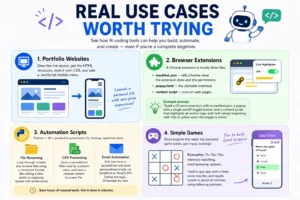
    Real Use Cases Worth Trying

    Portfolio websites.

    Describe the layout, get the HTML structure, style it with CSS, add a JavaScript mobile menu. Plenty of people have launched working personal sites this way with zero prior web experience.

    Browser extensions.

    Once I understood that a Chrome extension is really just three files, the whole thing became less intimidating. You need a manifest.json that tells Chrome what the extension does and what permissions it needs, a popup.html file for the clickable interface, and a content script that runs on actual web pages.

    My prompt for a link-highlighter extension was: “Build a Chrome extension with a manifest.json, a popup with a single on/off toggle button, and a content script that highlights all anchor tags with href values beginning with http in yellow when the toggle is active.” That specificity mattered. Earlier tests with shorter prompts produced incomplete files or left out the content script entirely.

    Automation scripts.

    Python is where AI coding really earns its keep for repetitive tasks.

    File renaming: write a script that loops through a folder and renames files using a consistent format, like adding a date prefix or swapping spaces for underscores. Five minutes to write the prompt. Never do it manually again.

    CSV processing: a script that opens a spreadsheet, filters rows by a column value, and saves a cleaned version to a new file. You describe the column names and the filter rule. The AI figures out the pandas syntax.

    Email automation: pull data from a spreadsheet and send personalized messages through SendGrid or Gmail’s API. The AI handles the boilerplate plumbing while you define what goes to whom.

    Simple games.

    Tic-Tac-Toe, memory matching, word guessing. These small projects teach you game states, user input handling, and conditional logic faster than most tutorials. I built a quiz app once and kept feeding it follow-up prompts until it had a countdown timer, a score counter, and a results screen. The base took twenty minutes.


    Using AI to Debug Broken Code

    Debugging used to mean sifting through forums for an hour hoping someone had the same error. Now the process is: paste the broken function and the error message, ask what is wrong, read the explanation.

    “Why is this returning undefined instead of the array?” “This loop never stops. What is causing it?”

    The explanation is often worth more than the fix. When you understand what went wrong, you avoid the same mistake in the next project. Reading AI debug responses has taught me more about JavaScript scope than most things I read deliberately.


    What Works Well and What Has Limits

    Genuinely useful

    • Rapid prototyping without needing to know the full library
    • Debugging with an explanation, not just a patch
    • Code comments that explain logic you can actually read
    • Low barrier for non-technical founders and creators

    Where it falls short

    • Security is never applied automatically, you have to ask for it
    • Older training data means deprecated methods sometimes appear
    • Long, multi-file projects push past context limits fast
    • Architecture decisions, performance tuning, and product thinking stay human

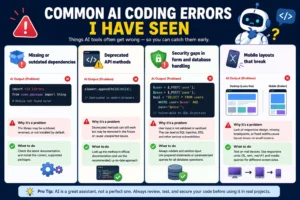
    Common AI Coding Errors I Have Seen

    After running enough projects to see the same problems repeat, here is what to watch before you assume the output is clean.

    Missing or outdated dependencies. The AI references libraries confidently, but sometimes the version it assumes is outdated or the package name has changed. The code looks correct until you run it and get a module not found error. Cross-check library names in the official docs before putting anything into a real environment.

    Deprecated API methods. This shows up a lot with JavaScript and Python. The training data includes older examples, so sometimes you get solutions built around methods that still work but are no longer recommended. If something runs but logs warnings, look up the method name to confirm it is still current.

    Security gaps in form and database handling. AI almost never sanitizes user input on its own unless you tell it to. I have seen it produce login systems that worked perfectly in testing but were wide open to basic injection. Always specify that you want input validation and parameterized queries, every single time.

    Mobile layouts that break. The AI tends to assume a wide desktop viewport. Breakpoints for smaller screens are often missing or set to values that do not hold up on an actual phone. After any UI generation, test on a real device or use the browser’s responsive mode before marking it done.


    Mistakes to Avoid

    Skipping the review step.

    Even code that looks clean can have quiet problems buried inside. The placeholder form action I mentioned earlier looked completely fine on the surface. Read it before you use it.

    Using AI as a shortcut instead of a learning tool.

    Copying without reading means you will not recognize problems when they show up. The goal is to build faster and still understand what you are building. Both things are possible at the same time.

    Ignoring security from the start.

    AI does not add secure coding practices unless you ask directly. If the project touches user data, passwords, or payment information, spell out what you need: input sanitization, safe database queries, proper authentication logic.

    One-line prompts for complex requests.

    Short prompts save thirty seconds on the front end and cost thirty minutes on the back end. Write a real brief.


    FAQS

    FAQ

    Do I need coding experience to use AI for development?

    No prior experience is required. That said, even picking up basic HTML or Python fundamentals helps you catch problems in the output and understand what needs fixing. You do not need much. Just enough to read what comes back.


    Which AI tool is best for writing code?

    Depends on the job. ChatGPT is a solid starting point for general tasks. GitHub Copilot fits developers who already have a setup and want inline suggestions. Claude handles large files and long-context debugging better than most. Run the same request through two and see which output actually matches what you needed.


    Can AI write code that is safe to use in real projects?

    It can, but only if you ask for security practices directly and review the output yourself. It does not apply them automatically. Anything handling user data or payments should be treated as a first draft that still needs a real review.


    How do I improve the quality of AI-generated code? Detailed prompts. Name the language, list the features, state what you do not want. Then ask follow-up questions to refine specific parts. Precision going in directly shapes what comes out.


    Will AI replace software developers?

    Not based on anything I have seen. Repetitive tasks and boilerplate drafts, yes. Architectural thinking, performance decisions, security audits, and understanding what a product actually needs to do are still very much a human job. Most developers I know treat it as a productivity tool and nothing more.


    Final Thoughts

    The gap between having an idea and building something real has genuinely closed in a way that did not exist a few years ago. What once required months of learning to even get started can now begin in an afternoon.

    But the bigger shift is not speed. It is who gets to build things now.

    People with ideas and no technical background have a real path forward. The tool helps. The judgment, the direction, the decisions about what to build and why, those still belong to you. Get those right and the AI makes everything after them faster.

    Learning how to write better prompts is similar to learning SEO: small improvements in inputs often create significantly better results. If you are building websites or content online, check out my Complete SEO Guide for Beginners 2026–2027.

  • Claude AI vs ChatGPT Which one is better!

    Claude AI vs ChatGPT Which one is better!

    Claude AI vs ChatGPT: Which One Actually Works Better for Content Writing?

    Introduction

    AI writing tools have quietly become part of how content gets made. Bloggers use them to move faster. Marketers lean on them when deadlines stack up. Business owners who never thought of themselves as writers now publish regularly because of these platforms.

    Two names keep coming up: Claude and ChatGPT.

    I spent several weeks running both through real work. Not five-minute demos. Actual publishing tasks. A 2,300-word remote work guide, product comparison drafts, email newsletter copy, SEO articles with specific keyword targets, and editing passes on pieces that were already live. I expected the differences to be surface-level. What I found was that each tool has a genuinely distinct working style, and that style becomes clear only after you push past the basics.

    The useful question was never which one is “better.” It was which one fits a specific type of work better

    Understanding the Two Platforms

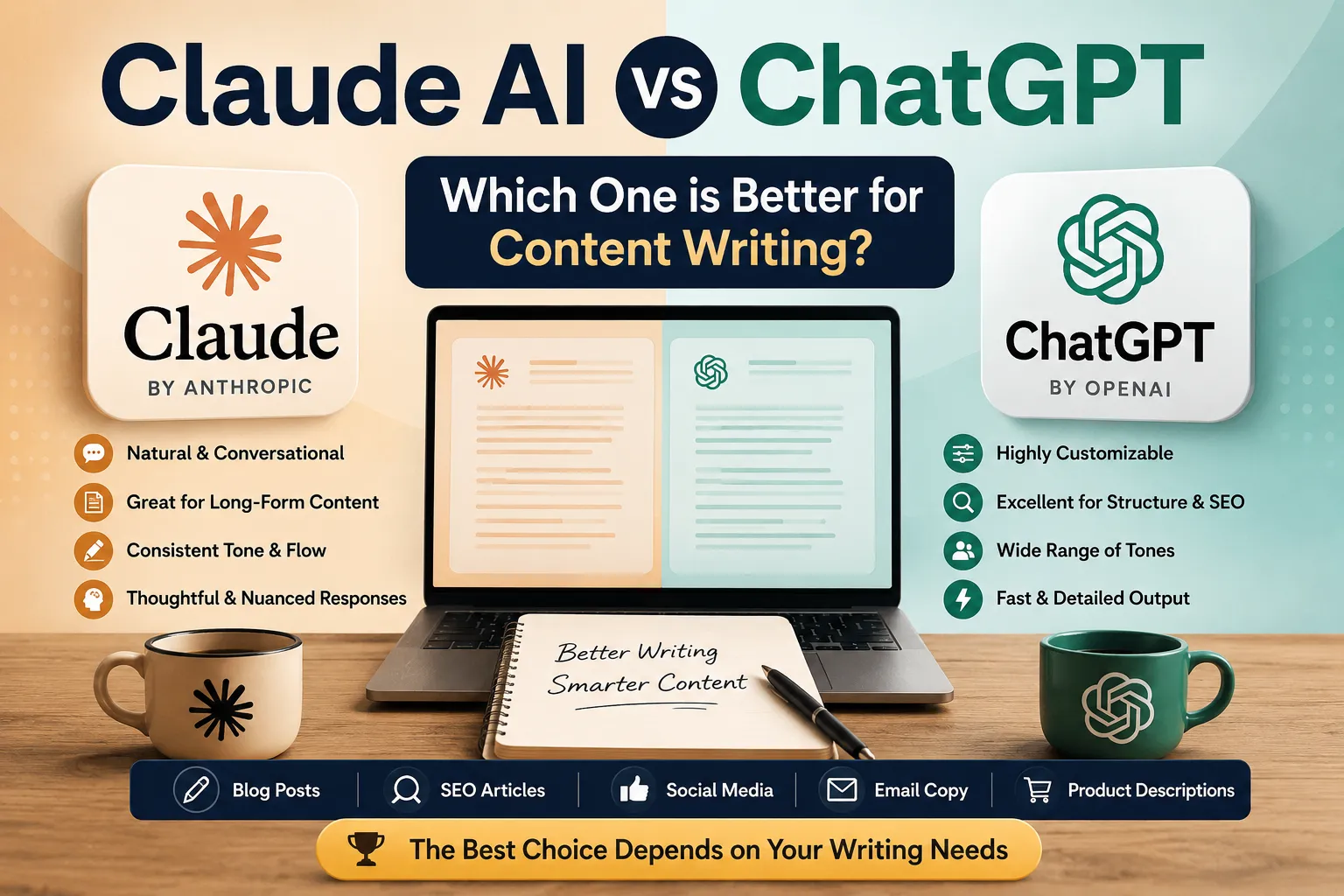
    Claude is developed by Anthropic. ChatGPT is built by OpenAI. Both generate text, help polish drafts, and assist with structuring information. The feature overlap is significant enough that many writers pick one purely based on which name they heard first.

    The gap shows up in actual use. Claude tends to write with a consistent, natural voice that needs less correction after the first pass. ChatGPT responds very precisely to instructions and builds almost exactly what you describe in the prompt.

    One way to think about it: Claude brings judgment to the page. ChatGPT executes direction. Depending on how you prefer to work, one of those will suit you considerably better than the other.

    First Draft Quality

    The first draft is where you either save an hour or create extra work for the rest of the day.

    When I used Claude for a beginner’s guide on remote work, the output came back warm and readable. Transitions felt intentional. Paragraphs connected without awkward gaps. I barely touched the structure before it was publishable.

    ChatGPT on the same brief returned a tighter heading hierarchy and cleaner SEO formatting, but the tone came out slightly stiff for a beginner audience. The structure was genuinely better organized. The voice needed a full rewrite pass to feel human.

    That test captured the core difference well. Claude focuses on how writing feels. ChatGPT focuses on how writing is organized. Both matter. They just do not get equal attention from each tool.

    One limitation I noticed with Claude: on highly technical topics, it occasionally became overly cautious and added unnecessary hedging. Sentences like “it’s important to note that results may vary” showed up in places where a direct statement would have served the reader better. Straightforward editing fixed it, but it happened enough to notice.


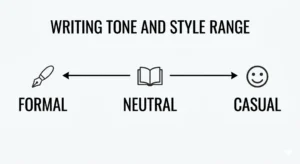
    Writing Tone and Style Range

    Claude defaults to a calm, grounded voice. It suits content where building reader trust is the priority. Personal finance, wellness, beginner tutorials, opinion pieces. The writing rarely sounds manufactured.

    ChatGPT covers more ground. Formal business reports, punchy ad copy, technical documentation, casual blog posts. It moves between these without much trouble when the prompt is specific enough. Writers managing several client accounts at once tend to find this range genuinely useful.

    That said, without a tone instruction, ChatGPT defaults to something generic and slightly stiff. I ran the same topic through it several times with short prompts, and the tone shifted noticeably between attempts. Sometimes measured and formal, sometimes almost conversational, with no clear reason for the difference. Claude without tone guidance still makes consistent choices. That reliability is worth something when you are working under a deadline.


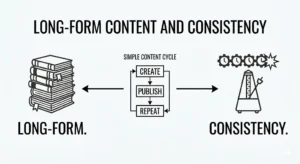
    Long-Form Content and Consistency

    Keeping a 2,000-plus-word article coherent from start to finish is harder than it looks. The voice should not drift. The logic should build toward something. The reader should not sense that two different people wrote the introduction and the conclusion.

    Claude handles this naturally. I ran a 2,300-word affiliate marketing guide through both tools using identical outlines. Claude produced a draft that read as one continuous piece. Tone held through the ending without any noticeable shift.

    ChatGPT’s version had stronger individual sections but needed connecting work between headings. Per-section quality was excellent when I provided detailed notes for each heading. Getting the whole thing to read as unified required an extra editing pass.

    Prompt format matters far more for ChatGPT on longer content than most people realize. The same topic with a vague brief versus a structured outline produced results that seemed to come from different tools entirely.

    Pricing and Value

    This comes up constantly when people compare both platforms, so it is worth covering directly.

    Both tools offer free plans. Claude’s free tier gives access to its standard model with some daily usage limits. ChatGPT’s free tier runs on GPT-3.5 with limited access to GPT-4 features.

    Paid plans for both sit around $20 per month at the time of writing. Claude Pro unlocks higher usage limits and priority access. ChatGPT Plus gives access to GPT-4, image generation through DALL-E, and browsing capabilities.

    For content writers, the paid plan on either tool tends to pay for itself quickly if you are publishing regularly. The free tiers are genuinely usable for occasional work, but daily writers will hit the limits fast.

    If budget is the deciding factor: both are similarly priced at the paid tier. The choice between them should come down to workflow fit rather than cost.

    SEO and Structured Content

    Search-focused writing has specific requirements. Keywords need to land without feeling planted. Headings need to signal topic structure. Meta descriptions need to earn the click.

    ChatGPT follows formatting instructions precisely. Tell it to include a target phrase in the introduction and a specific H2 structure, and it delivers consistently. For SEO content writing where hitting structural targets is part of the brief, this is a genuine advantage.

    Claude produces readable, well-paced articles that can rank, but it leans toward natural flow when there is tension between readability and placement. It follows keyword instructions when given them directly. Without that direction, it will make its own call, which is not always the right one for SEO purposes.

    A quick look at how both handle common writing tasks:

    Task Claude ChatGPT
    Natural first draft Strong Needs a detailed prompt
    SEO structure compliance Moderate Strong
    Long-form voice consistency Strong Good when outlined
    Tone flexibility Moderate Wide range
    Editing without overwriting Strong Can be aggressive
    Brainstorming volume Moderate High output

    Editing Existing Drafts

    Claude tends to preserve what is already working. If a draft has a rhythm or a phrase worth keeping, it usually works around those rather than replacing everything. I appreciated this when polishing pieces that had a solid foundation but needed a few rough sections cleaned up.

    ChatGPT rewrites more thoroughly. Hand it a poorly structured draft and ask for improvements, and it may rebuild entire sections from scratch. Useful when a piece genuinely needs structural surgery. Less useful when you asked for light edits and got back something you did not recognize.

    After running the same rough drafts through both tools several times, I settled into a clear habit. Claude for polishing. ChatGPT for rescuing.

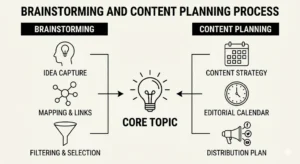
    Brainstorming and Content Planning

    ChatGPT has a clear volume advantage here. Ask for twenty blog post ideas in a specific niche, and you get twenty usable options in seconds.

    Claude produces fewer suggestions but tends to include more context around each one. An idea might come with a suggested angle, the reader question it answers, or a note about why the topic is worth covering. The suggestions feel thought through rather than generated.

    The workflow I settled on: use ChatGPT to generate a wide pool of ideas, then bring the strongest ones to Claude to develop into full briefs. Running both in sequence is faster than relying on either one exclusively.

    Learning Curve

    For someone new to AI writing tools, Claude is more forgiving. A simple, conversational prompt usually returns something usable. You do not need to master prompt structure to get a decent first draft.

    ChatGPT rewards the time you put into learning how to write good instructions. Experienced users who know how to build detailed briefs often get results that are hard to match. Beginners without that foundation will find the output inconsistent at first.

    Neither tool is technically difficult to operate. The real difference is how much preparation you are willing to do before the writing starts.

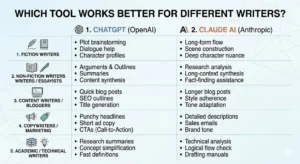
    Which Tool Works Better for Different Types of Writers

    Bloggers

    Claude is the stronger starting point. First drafts come out conversational and readable without much prompt engineering. For niche sites or personal blogs where voice is the main thing readers connect with, Claude tends to produce work that needs less cleanup before it goes live.

    Freelance Writers

    Freelancers handling multiple client niches will likely end up using both. Claude works well when a client wants natural, human-sounding copy. ChatGPT is more useful when the brief comes with specific structure requirements or keyword targets. The ability to switch based on the job is worth having.

    If your goal is turning writing into income, this guide on “how to earn money through content writing covers practical starting points.

    Agencies

    Agencies managing several brands tend to get more out of ChatGPT’s style range and instruction-following. When you need one tool to produce formal legal content in the morning and casual lifestyle copy by afternoon, ChatGPT handles those shifts better. Claude can cover both, but it takes more prompting to change modes reliably.

    Small Business Owners

    For business owners without a writing background, Claude is easier to get value from quickly. Simple prompts return usable drafts. The tone tends to feel approachable rather than corporate, which matters for customer-facing content like service pages, about sections, and email sequences.

    New writers looking to enter the industry may also benefit from learning “how to get their first content writing job before investing heavily in AI tools.

    Which Tool Is Better for Different Content Types

    Content Type Better Choice Reason
    Blog Posts Claude Natural tone, less editing needed
    SEO Articles ChatGPT Follows keyword and structure briefs precisely
    Product Reviews ChatGPT Handles structured comparisons cleanly
    Email Newsletters Claude Conversational voice fits direct reader relationships
    Content Briefs ChatGPT Strong at outlining and organizing structure
    Editing Existing Drafts Claude Preserves original voice while improving clarity
    Social Media Copy ChatGPT Wide tone range, punchy output
    Long-Form Guides Claude Consistent voice across extended word counts

    These are tendencies, not guarantees. A well-crafted prompt can push either tool into territory it does not naturally favor. But if you are moving quickly and want reliable output without extra effort, the table above reflects what I ran into across multiple projects.

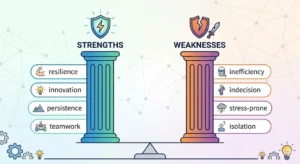
    Strengths and Weaknesses

    Claude

    Works well for natural-sounding drafts, consistent long-form writing, and editing that respects the original voice. Occasionally adds unnecessary hedging in technical content. Less suited for high-volume idea generation or tight keyword placement without direct instructions.

    ChatGPT

    works well for precise instruction-following, varied tone requirements, and structured SEO content. Tone can shift unpredictably on short or vague prompts. Can over-edit drafts when a lighter touch was what the work actually needed.


    Final Verdict

    After weeks of real testing across blog posts, SEO articles, email copy, product reviews, and long-form guides, the honest answer is that neither tool has a clean overall win.

    Claude is the better fit when the writing itself needs to feel natural. First drafts come out cleaner, voice stays consistent across longer content, and editing tends to respect what was already working. If your main output is personal content, beginner guides, newsletters, or anything where tone and trust drive reader engagement, Claude reduces the distance between draft and publish.

    ChatGPT is the better fit when control and structure matter most. It follows briefs with precision, handles SEO-structured content with more discipline, covers a wider style range, and generates a large volume of ideas quickly. For agencies, freelancers with varied client rosters, or anyone doing structured content creation at scale, it offers more direct influence over the output.

    Most experienced writers stop treating this as a competition at some point. They draft in Claude and structure or optimize in ChatGPT. That split covers most content creation needs without forcing either tool into a role it does not naturally fill.

    FAQS

    Frequently Asked Questions


    Q1. Is Claude better than ChatGPT for blogging?

    For conversational or personal blogs, Claude tends to produce more natural-sounding drafts that need less editing before publishing. For structured posts built around specific search targets, ChatGPT follows formatting instructions more precisely. Which one fits better depends mostly on the type of blog and how much upfront direction you prefer to give.


    Q2. Can both tools work together in the same workflow?

    Yes, and many writers already do this. A practical approach is drafting in Claude for flow and voice, then using ChatGPT to tighten structure or check against specific formatting requirements. The two do not conflict when used this way.


    Q3. Which tool handles research-heavy articles better?

    Neither replaces actual research. Claude tends to present complex topics in a logical, easy-to-follow sequence. ChatGPT is more useful for structuring comparisons, step-by-step processes, and categorized content where clear point separation matters.


    Q4. Is one easier to learn than the other?

    Claude is more approachable for beginners because it produces solid results from simpler prompts. ChatGPT has a higher ceiling but a steeper learning curve. Writers who invest time in developing better prompting habits tend to see stronger results from it over time.

  • How to Build a Website with Claude AI for Free

    How to Build a Website with Claude AI for Free

    How to Build a Website with Claude AI for Free (Complete Beginner’s Guide)

    I’ll be upfront — I avoided learning web development for years. Every time I sat down to figure it out, I’d end up on some tutorial that assumed I already knew things I didn’t, and I’d close the laptop feeling dumber than when I started.

    A few years back, I helped a friend with her online store. We planned for three weeks before writing a single line of code. Three weeks of notes, diagrams, second-guessing — and we hadn’t built anything yet. By the time we got to the actual work, we were already tired of the project.

    So when I first tried Claude, I wasn’t expecting much. Another tool that’d be fun for ten minutes and then hit a wall. Turns out I was wrong. Genuinely wrong, which doesn’t happen as often as I’d like.

    This guide is for people with something to put online — a business, a portfolio, a side project — but no clue where to start. I’ll walk you through the whole thing, step by step, and nothing here requires you to already know how to code.


    What Is Claude AI and Why Use It for Websites?

    Claude is an AI assistant from Anthropic. It writes HTML, CSS, JavaScript, helps plan your site layout, drafts content, and explains technical stuff in plain language.

    The gap between using Claude and just Googling “how to build a website” is honestly bigger than I expected. Google gives you ten articles with ten different assumptions about what you already know. One assumes you’ve never opened a browser. Another assumes you’re already comfortable with CSS selectors. You spend an hour filtering before you’ve written one tag.

    With Claude, you describe what you want and it starts working. That’s the whole difference.

    Worth knowing upfront though — Claude won’t publish anything for you. It gives you the files. You still have to upload them. That extra step is actually useful, weirdly, because you start understanding what you built instead of just clicking through a template and hoping it looks okay.

    I helped a designer friend build her portfolio one evening. She’s talented at her work but had never touched code. Two hours in, she had a real working site — dark background, image gallery, contact form. What she kept talking about afterward wasn’t how fast it came together. It was that she actually understood what each section was doing. Claude explained things as it went. She didn’t feel like she’d just copy-pasted something she’d never be able to touch again.


    The Numbers Behind This Approach

    Some context before the steps:

    • Over 1.8 billion websites exist today — yet most small businesses still don’t have one, mainly because of cost and complexity (Internet Live Stats, 2024)
    • 71% of small businesses say they’d build a site if the process were simpler (Clutch Small Business Survey, 2023)
    • Netlify and GitHub Pages already host millions of free static sites — the free infrastructure is mature and reliable
    • People building with AI assistance consistently report spending 3–5x less time than those learning traditional development from scratch
    • Google’s Page Experience update means a clean, genuinely helpful website can rank without a big budget behind it


    What You Need Before You Begin

    Short list. No prior experience, no paid software.

    • A free Claude account at claude.ai
    • Chrome or Firefox
    • Visual Studio Code — free, takes five minutes to install
    • A free hosting platform (Step 7)
    • A clear sense of what your site is actually for

    That last one matters more than people expect. I’ve watched someone jump straight into Claude without thinking through what they want, get confused by the output, then blame the tool. Claude can only work with what you give it.

    I saw this happen once with a student who typed “build me a website for my business.” Got something completely generic — could’ve been anyone’s site. He tried again with something specific: “service page for a mobile car wash in Lahore, dark scheme, pricing table, WhatsApp button.” He launched that version. Exact same tool, totally different result, just because he gave it something real to work with.


    Your Tool Stack (All Free)

    Tool What It Does Link
    Claude AI Writes your code and content claude.ai
    Visual Studio Code Where you edit your files code.visualstudio.com
    Google Chrome Preview locally before publishing Pre-installed on most systems
    Netlify Free hosting netlify.com
    GitHub Pages Free hosting, more developer-oriented pages.github.com
    Vercel Fast, beginner-friendly alternative vercel.com
    Canva (optional) Make simple graphics canva.com
    Unsplash (optional) Free photos unsplash.com

    Honestly just start with Claude, VS Code, and Netlify. The rest you can figure out later.


    Step 1: Set Up Your Claude Account

    Head to claude.ai and sign up. Free, two minutes.

    You’ll get a chat window. That’s it. Type what you want — like a message — except you’re describing a website instead of talking to a friend.

    Most people’s first mistake: typing “make me a website” and then feeling let down. The prompt is carrying most of the weight here. Walk into it like you’re briefing someone you just hired. Vague instructions get vague results. Specific instructions get something you can actually use.

    Things that tend to work well as starting prompts:

    • “Responsive single-page portfolio for a photographer. Dark navy background, white text, image grid layout.”
    • “Landing page for a dog-walking business. Services section, pricing table, WhatsApp contact button.”
    • “Personal resume site, one page, clean and minimal, white background.”


    Step 2: Generate Your Website Code

    AI Tools

    Ask for “a single HTML file with embedded CSS.” One file is much easier to manage when you’re starting — split it later if you want.

    When the code shows up, skim it. You don’t need to understand every line. You’re just getting a feel for the shape of it — where sections begin and end, what the comments say. If something confuses you, ask Claude. It’ll explain.

    A prompt that gets decent first drafts:

    “Clean, responsive website for a digital marketing portfolio. White background, blue accents. Header, about section, services section, contact form. Mobile-friendly.”

    Adding “minimal,” “professional,” “mobile-friendly” to your prompt consistently improves the output. Giving it a color scheme helps too — it handles visual direction better than you’d think.

    I remember building a tutoring center’s site and the first output was just… flat. Generic. The kind of page that could belong to any business. Second attempt, I listed everything out — “hero banner about helping students pass exams, 3-column services with icons, contact form with name, email, subject field.” Came back with something we actually used, barely touched.


    Step 3: Move the Code into VS Code

    Paste what Claude gave you into VS Code, save it in a folder on your computer. You’ll usually end up with:

    • index.html — the main page
    • style.css — design and layout (if Claude wrote it as a separate file)
    • script.js — only if there’s interactive stuff

    If Claude bundled everything into one file, just save it as index.html. That’s fine, that’s actually easier.

    Funny thing is — everyone I’ve shown this to has the same reaction the first time they see a screen full of code. That low-grade panic of “I don’t understand any of this.” I had it too. But you’re not reading it top-to-bottom like a book. You’re looking for landmarks. Comments like <!-- Header --> or /* Contact Section */ that tell you where things live without needing to understand the syntax around them.

    I remember a friend who teaches online — she thought she’d broken her whole site because the styling wasn’t applying at all. She’d pasted the CSS into the wrong file. Moved it over, fixed the link in the HTML, everything came back. Claude spotted it in about 30 seconds when she described what was happening.


    Step 4: Preview It in the Browser

    Drag your index.html into Chrome. Site loads right there, no internet needed.

    Run through:

    • Is the text actually comfortable to read?
    • Do the buttons and links do anything?
    • How does it look on a phone? (Chrome → right-click → Inspect → phone icon at the top)
    • Any broken image icons?

    Mobile is the one most people skip and regret later. More than half of web traffic comes from phones, and a layout that looks clean on a 15-inch laptop can fall apart completely on a small screen — font sizes wrong, elements stacking in weird ways, buttons running off the edge. Check both. Every time.

    Built a landing page once that looked great on my laptop. Clean, well-spaced, nothing out of place. Pulled it up on my phone and the main heading was enormous — ran past the edge of the screen entirely. One prompt about responsive font sizing, Claude fixed it in under a minute.


    Step 5: Go Back and Forth Until It’s Right

    Here’s something worth knowing clearly: your first output is a draft, not a finished product. That’s not a failure — it’s just how this works. The actual shaping happens in the conversation.

    Describe problems the way you’d explain them out loud:

    • “The header’s huge, it takes up half the screen — shrink it.”
    • “Button needs to be more of a burnt orange, and rounder corners.”
    • “Navigation links should scroll smoothly, not jump.”
    • “Everything feels cramped on mobile, fix the spacing.”

    In traditional development, hunting down a CSS spacing issue can waste 20 minutes. Here, you describe what looks wrong and get working code back in seconds.

    Spent 40 minutes one afternoon trying to center a logo. Tried everything I knew. Eventually just told Claude: “The logo won’t center — it keeps sitting on the left.” Two lines of flexbox. Done immediately. That afternoon changed how I thought about the tool.


    Step 6: Put Real Content In

    This is where most people quietly give up without realizing it.

    The structure is working, things look decent — and then they leave “Lorem ipsum” sitting in every paragraph and “Your Name Here” in the heading and call it done. Visitors notice. Search engines notice. It signals the site isn’t finished even when technically it is.

    Swap in:

    • Your actual name or business name
    • An About section that sounds like a person, not a template
    • Honest descriptions of what you actually do
    • Real photos — yours, or from Unsplash
    • Actual contact details

    Writing about yourself is awkward for a lot of people. If that’s you, just give Claude five bullet points about your work and ask it to write a short bio. It’ll keep your information without making it sound like a press release.

    I know a video editor who swapped his placeholder bio for three specific sentences — what he edits, how fast he works, a note about smaller YouTube channels being his sweet spot. Two weeks after launching, someone messaged him saying they picked him specifically because “the bio felt real.” That’s the kind of thing that gets lost when you leave filler text in.


    Step 7: Publish for Free

    Netlify is where I’d send anyone doing this for the first time. Go to netlify.com, create a free account, drag your project folder into the dashboard — you’ll have a live URL within a few minutes.

    GitHub Pages works well too, especially if you’ve used Git before. A bit more setup, completely free.

    Vercel is fast and clean, similar experience to Netlify.

    All three give you a free subdomain to start. A proper domain like yourname.com is about $10–$15 a year when you’re ready for it — but that’s not a today problem.

    I helped a baker get her menu online last year. We finished the HTML at 2 in the afternoon on a Sunday. By 2:08 she was sending the Netlify link to customers on WhatsApp. Eight minutes, start to live. Once you’ve done it once it feels like nothing.


    SEO Tips: Getting People to Find Your Site

    Headings carry more weight than most beginners realize. Google uses H1, H2, and H3 tags to understand what a page is about. Ask Claude to write headings that match how your actual visitors would search — not how you’d describe your business internally.

    Write for humans. Google’s job is to surface content that genuinely helps people. A direct, honest answer to a real question beats keyword-stuffed copy every time — has for years, still does.

    Meta titles and descriptions are low-effort, high-impact. These are the snippets that show up in search results before anyone clicks. Claude writes them in seconds: “Write a meta title and description for a freelance photography portfolio in Lahore.”

    Image file sizes matter. Heavy images slow your page, and slow pages rank lower. Keep files under 200KB where you can. Squoosh.app compresses for free without wrecking quality.

    Test on mobile before publishing. Google indexes the mobile version of your site first. A site that only looks good on desktop will quietly underperform in search regardless of how good the content is.


    Mistakes That Keep Coming Up

    Vague prompts. “Build me a website” is not a brief. Say what kind, for who, what sections, what colors, what purpose. The output is only as good as the direction you give.

    Never testing on mobile. 60%+ of traffic is mobile. Designing only for desktop is designing for a minority of your visitors.

    Copy-pasting without looking. You don’t need to understand every line. But skimming helps you catch errors early and learn faster than any course will teach you.

    Piling on design elements. Animations, gradient backgrounds, multiple fonts, floating particles — beginners want all of it at once. Usually looks chaotic. Pick one strong direction and stick with it.

    Leaving placeholder content live. “Lorem ipsum” on a published site is a red flag for visitors and search engines both. Even rough, honest content beats filler.

    Ignoring load speed. Six seconds to load and most people are already gone. Light files, minimal scripts, quick check at pagespeed.web.dev before you go live.


    Quick Checklist Before You Publish

    • Opens without errors in Chrome, Firefox, and Safari
    • No placeholder text anywhere
    • Looks good on desktop and phone
    • All buttons and links actually work
    • Images load, no broken icons
    • Meta title and description in the <head>
    • Contact info visible and correct
    • Loads in under 3 seconds (pagespeed.web.dev)
    • Published on Netlify, GitHub Pages, or Vercel
    • At least one real person has looked at it and told you what they think


    Conclusion

    Most people who say they want a website never build one. Not because they can’t. Because starting always feels a bit harder than it actually is, and it’s easy to keep pushing it back.

    Claude doesn’t remove that hesitation for you. But it does take away most of the technical excuses — the “I need to learn CSS first” or “I don’t know enough yet.” You just need to know what you want to put online and be willing to describe it.

    Build one page. Real content, real contact info, real purpose. Publish it. Send the link to someone who’ll actually give you feedback. See what they say, fix the things worth fixing, and keep going.

    That cycle — build, publish, improve — is what actually teaches you. Not reading guides like this one. So close the tab and go start the thing.


    Frequently Asked Questions. (FAQS)

    FAQS


    Do I need to know how to code?

    No. Describe what you want, Claude writes it. Knowing roughly what HTML and CSS are — not how to write them — helps you give clearer prompts. Ask Claude to explain that too if you want. It’s actually decent at teaching.


    Is the free plan enough?

    For most beginner projects, yes. There are message limits, so be specific with your prompts so you don’t burn through them on vague requests. A portfolio or small-business page is well within what the free tier can handle.


    Can this kind of site make money?

    Plenty of service businesses, blogs, and affiliate content. What determines whether it works is the content itself, not the tool used to build it. Thin content performs poorly regardless.


    What if something breaks after I edit it?

    Paste the broken code back into Claude, describe exactly what’s wrong and what you changed. Be specific. Ask it to explain the fix too — you’ll recognize the pattern next time.


    Can Claude handle logins or databases?

    It can write that code, but features like that need a server, which free static hosting doesn’t provide. Start static, add complexity when you actually need it.


    How long does this realistically take?

    One page: one to three hours. Multi-page site with real content: a full day, maybe a weekend. The code comes fast. Time goes into decisions and writing.


    Is it safe to publish?

    For standard HTML/CSS/JS sites, yes. Just don’t handle passwords or payment info without proper security in place. For portfolio or information sites, nothing to worry about.


    Disclaimer

    Disclaimer

    This is based on personal experience and research. Written to help people learn, not to guarantee outcomes. Use your own judgment before making decisions based on what you read here.

    The tools and platforms mentioned may change. I try to keep things accurate but can’t promise everything stays current.

    Educational article only — not financial, legal, or business advice. For serious decisions, talk to a qualified professional.

    Affiliate links or sponsorships will always be disclosed. I only mention things I’d actually recommend.

    Thanks for reading.