Category: E-Commerce

  • How to Create and Sell Digital Product on Gumroad

    How to Create and Sell Digital Product on Gumroad

    How to Create and Sell a Digital Product on Gumroad as a Beginner

    The first digital product I ever considered selling was a simple spreadsheet I had built for myself. At the time, I assumed I needed a website, a payment gateway, and some technical knowledge before I could sell anything.

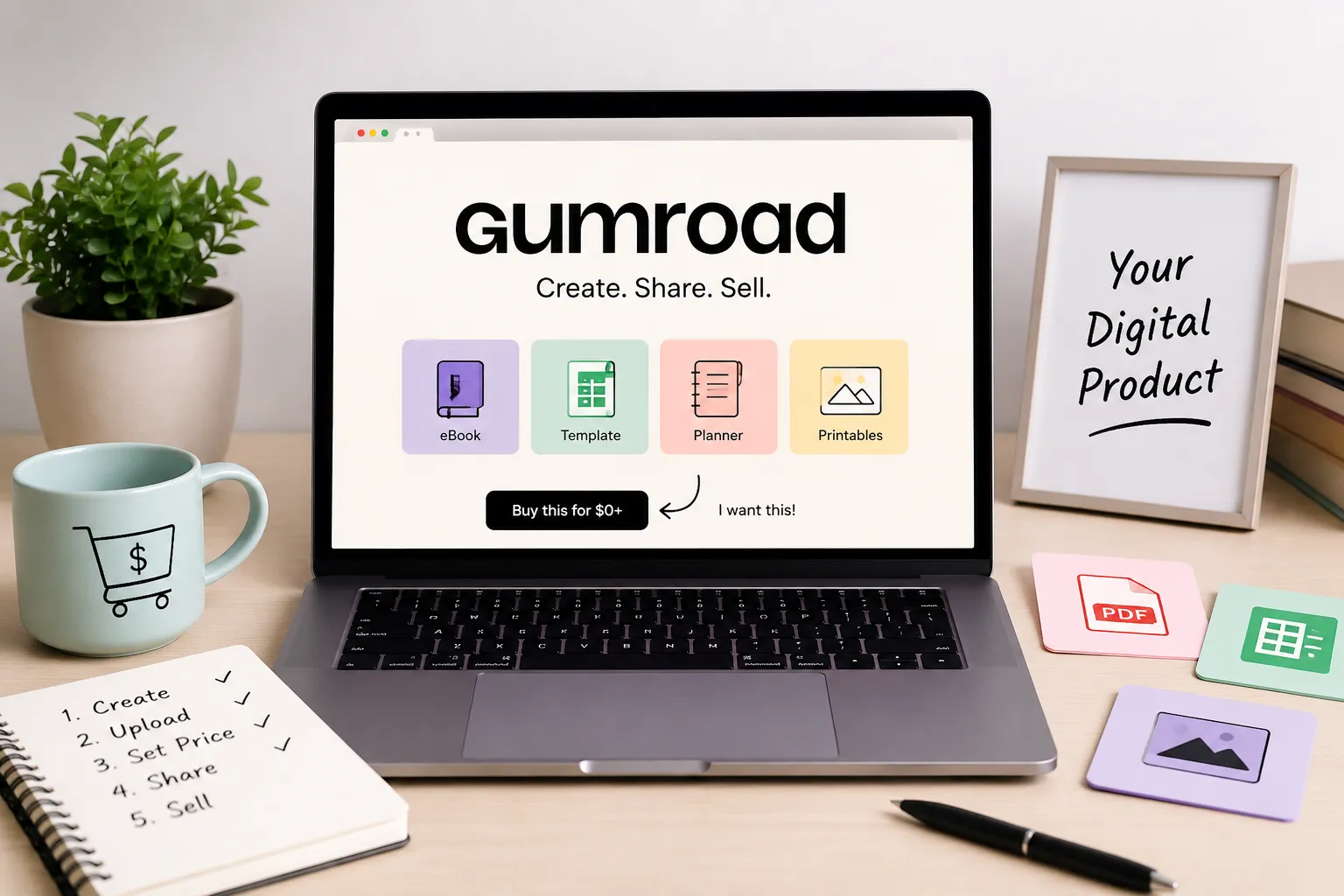
    That assumption is worth questioning. After researching creator platforms, I found that Gumroad removes most of the barriers beginners usually face. You sign up, upload a file, set a price, and share the link. No monthly fee, no hosting bill, no developer involved.

    This guide covers the full process, from picking a product idea to writing a listing that gets found, including how fees actually work and what most beginner guides leave out.
     

    What Buyers Are Actually Looking For

    Nobody wakes up thinking “I need more PDFs.” What people want is a faster way to finish something they are already trying to do.

    That shift in thinking changes how you build a product. A resume template that helps someone land interviews in a specific industry is useful. A generic “career guide” is forgettable. Same effort to create. Very different results.

    Products that sell well on Gumroad tend to fall into these categories:

    Who You Are What You Can Sell
    Student Exam notes for one specific subject
    Freelancer Proposal, invoice, or contract template
    Designer Canva social media or branding kit
    Remote worker Weekly planner or task tracker
    Teacher or tutor Printable worksheet or lesson plan pack

    One audience. One problem. One clean solution. That combination works far better than trying to appeal to everyone.

    Where Good Product Ideas Actually Come From

    Most people overthink this. The best product you can sell is probably something you already built for yourself and forgot about.

    Check your Google Drive right now. Is there a spreadsheet you use every week? A checklist you follow before submitting client work? A template you made because nothing else fit what you needed?

    That is a product. You already solved the hard part.

    Before building anything, spend twenty minutes searching Gumroad for similar listings. If comparable products exist and have reviews, demand is confirmed. If nothing shows up, either you found a gap or there is no market. A quick Google search for the same idea will tell you which one it is.

    Narrow beats broad every time. A “client onboarding checklist for freelance web designers” will connect with its exact audience immediately. A “business productivity bundle” connects with nobody in particular.
     

    Building the Product: What Tool to Use for What

    This is the section most guides leave vague. Here is the practical breakdown.

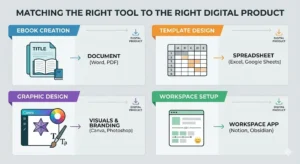
    Writing an ebook or guide. Use Google Docs. Structure it with proper headings. When it is done, export as PDF. PDF renders consistently across every device and cannot be accidentally edited by the buyer. Keep it between 15 and 30 pages. Longer is not better. More focused is better.

    Spreadsheet template. Build in Google Sheets or Excel. Export as XLSX so buyers can edit it in whichever tool they prefer. Add a tab called “Start Here” with simple step-by-step instructions. Fill the main sheet with dummy data so the layout makes sense immediately, without needing to read anything.

    Canva template. Design inside Canva. When ready, go to Share and generate a template link. Buyers click it, copy the design into their own Canva account, and customize freely. No file export needed. Just deliver the link inside a short PDF.

    Printable planner or worksheet. Design in Canva. Export as PDF. If there is any chance your buyers are outside your country, include both A4 and US Letter sizes. Plenty of sellers have been surprised by how many buyers email asking for the other format.

    Notion template. Build the template in Notion. Duplicate it as a shareable template link. Deliver it in a PDF that includes one or two screenshots showing exactly how to copy it to their own workspace. First-time Notion users especially need this.

    Go through the final product once as if you have never seen it before. If anything is confusing, either fix it or add a note. Confused buyers leave bad reviews or ask for refunds, not both.


    Optimizing Your Gumroad Listing for Search

    Most sellers write their title and description once and never think about it again. That is a missed opportunity.

    Both Gumroad search and Google pull results based on the words inside your title and description. Buyers type specific phrases when they search, and your listing needs to match those phrases naturally.

    Title is the most important place to start. Vague titles miss buyers completely.

    Weak: “Budget Planner” Strong: “Monthly Budget Planner Spreadsheet for Freelancers — PDF and Excel”

    The stronger version includes what the product is, who it is for, and what format it comes in. All three are things buyers actually type.

    Inside the description, use the same language your buyer would use when describing their own problem. If you are selling a resume template for recent graduates, write “resume template for recent graduates” somewhere in the description, not just “professional resume template.” Small difference, but it matters for search.

    Naming your product images descriptively can help keep your files organized and may provide additional context for search engines compared to generic filenames like “IMG_4823.png.”

    Include the product format clearly, whether that is PDF, Excel, Canva, or Notion. Buyers often filter by what tool they already use, and including the format removes doubt before they even read the full description. It can also improve click-through rates because buyers immediately know whether the product works with the tools they already use.

    Gumroad Fees: What “Free” Actually Means

    The platform has no monthly fee. That part is accurate.

    What it does charge is a percentage of each sale. New accounts start at 10 percent. As your total earnings on Gumroad grow over time, that rate comes down. On top of that, payment processing through Stripe or PayPal adds roughly 2.9 percent plus 30 cents per transaction.

    Sell a $10 product and you keep around $8.40 after both cuts.

    No fee to sign up. No fee to upload. No fee to list ten products or a hundred. The only cost kicks in when you actually earn something, which makes it a genuinely low-risk starting point.

    If you want to compare Gumroad with other marketplaces before choosing a platform, you can also check our guide on Best Websites to Sell Digital Products Online.
     

    Setting Up Your Profile

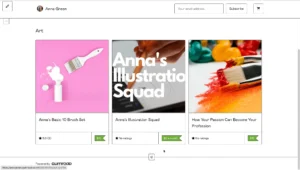
    Profile setup takes under ten minutes. Do not skip it.

    Buyers check creator profiles before purchasing, especially from someone with few or no reviews yet. An empty profile with no photo and no description creates doubt. A clear photo, a specific bio, and a sentence about who your products help removes that doubt.

    Write the bio for one person, not for everyone. “I make budget spreadsheets for freelancers who hate dealing with numbers” is specific and speaks directly to someone. “I create useful digital products” says nothing to anybody.

    Writing a Listing That Actually Gets Clicks

    Gumroad asks for five things when you add a product: title, description, file, price, and cover image. All five affect whether buyers click and whether they buy.

    Title

    This is where most listings lose buyers before they even open the page.

    Weak: “Planner Template” Strong: “Weekly Planner for Freelancers — Printable PDF, A4 and US Letter”

    The stronger version tells the buyer exactly what it is, who it is for, and what format they will receive. It also contains phrases real people type into search bars, which matters for both Gumroad search and Google.

    Description

    Answer four questions and stop. What is inside? Who is it for? What problem does it fix? What can the buyer do after using it?

    Short sentences. A brief feature list if the product has multiple parts. No inflated promises. Honest descriptions reduce refund requests because buyers know precisely what they are getting.

    Cover image

    Show the actual product. A planner listing should show a real planner page. A spreadsheet listing should show the actual layout. Use Canva to put together a clean mockup in thirty minutes. Buyers make quick visual decisions and a screenshot of the real product is more convincing than any graphic.
     

    How People Find Your Product

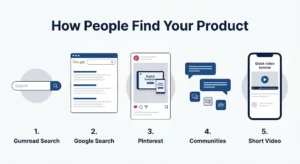
    Uploading and waiting is not a plan. Here is how discovery actually works.


    1. Gumroad search

    Buyers searching directly on Gumroad see results based on your title and description. Specific, clear language in both places means your listing appears for the right searches.

    2. Google search

    Some Gumroad product pages rank in Google. If your title contains phrases buyers type into Google, your listing can appear to people who have never heard of Gumroad. “Weekly planner for freelancers PDF” is a real search term. “Planner template” is too broad to rank for anything useful.

    3. Pinterest

    Consistently effective for visual products like planners, templates, and printables. Create a pin showing the product and link it directly to the listing. It takes twenty minutes and can drive traffic for months without any ongoing effort.

    4. Communities

    Reddit threads, niche Facebook groups, Discord servers, and online forums in your topic area. Join them. Be genuinely helpful. When the product fits naturally into a conversation, share it. Forced self-promotion in communities gets ignored or banned. Helpful contributions build real trust.

    5. Short video

    A 45-second screen recording showing how to use a spreadsheet or planner does more than any graphic. People want to see how it works before paying.

    Pricing Without Guessing

    Product Type Where to Start
    One-page checklist or simple template $3 to $7
    Multi-sheet spreadsheet with instructions $9 to $19
    Ebook or written guide (15 to 35 pages) $7 to $15
    Notion dashboard or planner system $10 to $25
    Canva template pack $9 to $20
    Detailed business guide or resource kit $19 to $45

    Start lower. Collect a few honest reviews. If buyers are satisfied and the product genuinely solves the problem, the price can go up. Starting at a premium price with zero reviews slows everything down.

    What to Do With Buyer Feedback

    The first version of any product has gaps. Expect it.

    Watch the questions buyers ask before and after purchasing. When the same question comes up three or four times, it means something inside the product is unclear or missing. Fix it. Then update the listing to mention the improvement.

    That update becomes a free reason to share the product again. “Version 2 now includes a mobile-friendly layout” is a legitimate announcement, not a spam post.

    Mistakes That Cost Beginners Time

    Building before validating. Search for demand before spending days on creation. Twenty minutes of research saves weeks of wasted work.

    Too broad an audience. “For anyone who wants to stay organized” competes with every app and planner in existence. “For freelance designers managing multiple client projects” is something a specific person immediately relates to.

    Skipping the cover image. A listing without a real visual preview looks unfinished. Buyers scroll past it.

    Describing features instead of outcomes. A twelve-column spreadsheet is a feature. “Track every invoice and know exactly who owes you money at a glance” is an outcome. Buyers purchase outcomes.

    Selling digital products is one of the simplest forms of e-commerce because there is no inventory or shipping involved. Beginners can learn more in How To Get Started In E-Commerce.

    FAQ

    Q1. Is Gumroad actually free?

    No monthly fee. Gumroad takes roughly 10 percent of each sale plus standard payment processing fees. The percentage drops as your earnings on the platform increase. You pay nothing until you sell something.

    Q2. Can I sell Canva templates on Gumroad?

    Yes. Build the template in Canva, generate a shareable template link, and deliver it inside a PDF with instructions. It is one of the most common product types on the platform and requires no file download from you.

    Q3. How do I get my first sale?

    Share in a community where your exact buyer already spends time. One well-placed post in a relevant subreddit, Facebook group, or forum moves faster than broadcasting to a general audience. Pinterest also produces consistent early traction for visual products.

    Final Thoughts

    Gumroad handles payments, delivery, and the storefront. What it cannot do is validate your idea, write a clear title, or get your product in front of the right people. That work belongs to you.

    One product. One audience. One real problem solved well. Start there.

    Gumroad is one option, but there are several other ways to start selling digital products without upfront costs. I covered additional methods in my guide on “How to Sell Digital Products Without Investment in 2026-2027.”
  • How to Start Shopify Dropshipping 2026–2027 (Step-by-Step Guide)

    How to Start Shopify Dropshipping 2026–2027 (Step-by-Step Guide)

    How to Start Shopify Dropshipping in 2026–2027 (Step-by-Step Guide)


    Introduction

    Starting Shopify dropshipping store feels exciting until you actually sit down to do it. I remember staring at my screen past midnight, watching tutorials that all contradicted each other. One demanded a huge budget. Another promised overnight results.

    I even launched my first product, a portable phone stand, without ordering a sample. It arrived scratched and poorly packaged. That refund request taught me more than any YouTube video ever did.

    Most newcomers just want one thing: a straight, honest answer. That is exactly what this is.

    Shopify dropshipping still works in 2026–2027, but only if you approach it right. Customer orders, supplier ships, you keep the margin. Simple model. But customers are smarter now, and a slow page or a blurry photo loses the sale instantly. Sellers who lead with trust and real value still win. That part never changes.

    Shopify dropshipping still works in 2026–2027, especially for beginners who understand the differences between platforms like Shopify and WordPress before launching a store.
    You can read this article to know the difference between these platforms. Shopify Vs WooCommerce! Complete comparison


    Understanding the Full Picture Before Spending Anything

    Before committing a single dollar, understand what actually drives a sale.

    It is not just about having a good product. It is the entire experience around it, how fast the page loads, whether the photos look authentic, what happens when something goes wrong. Most failed stores are not missing a great product. They are missing basic trust signals that tell a stranger it is safe to hand over their payment details.

    Two sellers once listed the exact same kitchen tool at the same price. One used manufacturer photos and copied wholesale descriptions. The other showed the item being used in a real kitchen, answered common objections directly on the page, and displayed a simple 30-day return policy in the header. The second seller outsold the first by a wide margin within a month.

    That gap is almost always fixable — and fixing it costs almost nothing.


    Picking the Right Product Category

    Trying to sell everything to everyone is one of the fastest ways to go nowhere.

    Focused stores build a reputation far faster. And in this environment, your reputation is your most valuable asset. I tested three different general stores before accepting this. Each one felt busy and purposeful to build, and each one failed to connect with any particular audience.

    The best niches tend to solve a small but persistent daily frustration — or they serve people who are genuinely passionate about a specific interest. Ergonomic work accessories, fitness recovery gear, travel organization tools, and specialty pet care all hold up because demand is steady rather than trend-dependent.

    How to research before committing: Use Google Trends to check whether interest in a category is stable or declining. Browse the top-selling items on AliExpress and CJ Dropshipping within a niche, then cross-reference those products against Amazon reviews — specifically the one and two-star reviews. Those complaints are your product improvement brief and your marketing angle at the same time. If people consistently complain that a competitor’s version breaks after two weeks, your opportunity is durability messaging.

    Look for products that check most of these boxes:

    • Solve an everyday problem people openly talk about
    • Difficult to find conveniently in local shops
    • Easy to demonstrate visually in a short video
    • Lightweight enough to keep shipping costs manageable
    • Durable enough to avoid regular return requests
    • Priced with enough margin to absorb advertising costs

    One seller built a steady business around a lumbar support cushion by focusing messaging entirely on the relief office workers feel at the end of a long day. That single emotional angle — not the foam density, not the dimensions — drove sales. The product was ordinary. The positioning was not.


    Building a Store People Actually Trust

    You do not need a complicated website. You need a clear one.

    Clean layout, easy navigation, fast loading, and honest policies put you ahead of most beginner stores. I spent weeks on my second store choosing colors and fonts while my checkout process had three unnecessary steps and no visible return policy anywhere on the page. I was decorating a house with a broken front door.

    Shopify’s built-in themes — particularly Dawn and Sense — are genuinely solid starting points. Resist the urge to buy a premium theme before you have validated a single product. The theme is rarely the reason a store does not convert.

    Your product page needs to answer these questions without making anyone hunt:

    • What does this actually do?
    • What specific problem does it solve for me?
    • What does it look, feel, or function like in real life?
    • When will it arrive?
    • What happens if it is not right?

    After my second store’s product pages were rewritten in plain, benefit-first language — and after I added real lifestyle photography instead of white-background stock images — the conversion rate improved noticeably within the first two weeks. Sometimes the simplest changes carry the most weight.

    A minimalist skincare brand once stripped away all decorative graphics and rewrote descriptions in plain language. Orders increased. Removing clutter was the actual upgrade.


    Finding Suppliers Worth Keeping

    Your supplier relationship is either your biggest asset or your biggest headache. There is rarely much in between.

    Slow shipping used to be tolerable. Now it drives negative reviews and refund requests at a pace that can end a store before it finds its footing. Here is how I evaluate any new supplier before committing:

    Step 1 — Order a sample personally. One test order reveals packaging quality, actual transit time, and product consistency before a customer experiences any of it. This step is non-negotiable.

    Step 2 — Message their support team first. Ask a basic question about shipping timelines. How quickly they respond, and how clearly they communicate, tells you a great deal about how they will handle problems down the road.

    Step 3 — Check their reviews across multiple platforms. Look specifically for patterns in complaints — not individual bad reviews, but repeated themes around delays, broken items, or poor communication.

    Reliable platforms worth working with include CJ Dropshipping for competitive pricing and warehouse flexibility, Zendrop for US-based inventory that supports faster domestic delivery, and AliExpress for broad catalog testing in early stages. Each has genuine strengths depending on where your customers are located.

    One store owner switched to a slightly pricier supplier after consistent shipping delays. Per-unit profit dropped modestly. Five-star reviews increased sharply and return requests dropped by roughly 60% over the following two months. That trade-off was unquestionably worth it.


    Writing Copy That Sounds Like a Real Person

    Most wholesale product descriptions are either robotic or completely generic. Copying them directly onto your store is one of the most common and damaging mistakes beginners make.

    Instead of: “Rechargeable 300W blender with six stainless steel blades.”

    Try: “Fits right in your gym bag. Fresh smoothie ready before you reach the office — no fuss, no cleanup.”

    One version lists hardware specifications. The other sells a moment in someone’s actual day. People buy outcomes and feelings far more readily than feature lists.

    Keep tone conversational and skip the inflated promises. Honest copy that sets accurate expectations generates fewer disputes and noticeably better repeat purchase rates. I once ran two nearly identical ad sets — one with spec-heavy copy, one with scenario-based copy — and the scenario version consistently produced a lower cost per purchase across two separate products.


    Marketing, SEO, and TikTok Strategy

    Paid ads can work. Relying on them exclusively, especially early on, burns through budget fast and leaves you with nothing lasting.

    For organic search (SEO): Your product titles and descriptions should include the specific phrases people actually type into Google. Use Google’s autocomplete and the “People also ask” section to find these naturally. A product titled “Portable Lumbar Support Cushion for Office Chair” will pull organic traffic. “Back Comfort Pro X3” will not. Tools like Google Search Console and Ubersuggest help track which terms are bringing visitors over time. Installing Google Analytics 4 from day one means you never lose that data.

    For TikTok and Instagram Reels: The format that consistently performs is the problem-solution-reveal structure. Open with a relatable frustration in the first two seconds — no logo, no intro. Show the problem visually. Demonstrate the product solving it. End with a clear, simple call to action. Canva works well for static creative assets, and CapCut handles video editing without a steep learning curve. Post at minimum three times per week when building an account from scratch.

    A travel accessories brand published a simple “smart packing” video series. Several clips picked up organic traction and kept driving consistent orders for weeks with zero additional ad spend behind them.

    For email: Set up Klaviyo from the beginning. The two automations that pay for themselves fastest are the abandoned cart sequence — three emails over 24 hours — and the post-purchase flow that sends tracking information and a check-in message three days after delivery. Both reduce support inquiries and increase repeat purchase rates without ongoing manual effort.


    Mistakes That Cost Beginners the Most

    These patterns appear constantly in stores that never gain real traction:

    • Listing products never personally ordered. Always test before selling. Always.
    • Running paid ads before the store actually converts. More traffic to a broken funnel only accelerates the loss. Fix conversion first using organic or low-cost traffic, then scale with paid.
    • Ignoring post-purchase communication. The window between order placement and delivery is when buyer anxiety peaks. A proactive tracking update prevents a significant share of unnecessary support messages.
    • Overstacking apps early. Start with Shopify, Google Analytics 4, Canva for creatives, and Klaviyo for email. That setup handles the first several months without unnecessary complexity or cost.
    • Picking a niche based purely on personal enthusiasm. Passion helps with consistency. Data determines whether there is actually a paying audience.
    • Chasing trends without a publishing habit. One viral moment is not a business. A consistent content rhythm is.


    Pre-Launch and Post-Launch Checklist

    Before Launch

    • Validate product demand using Google Trends and competitor research
    • Order at least one supplier sample personally
    • Write all product descriptions in plain, benefit-first language
    • Confirm checkout works smoothly on both desktop and mobile
    • Add a visible return and shipping policy page
    • Install Google Analytics 4 before driving any traffic
    • Set up abandoned cart email sequence in Klaviyo


    After Launch

    • Publish educational or demonstration content at least three times per week
    • Monitor cart abandonment rate weekly for the first month
    • Respond to every customer message within 24 hours
    • Review supplier shipping performance consistently in early weeks
    • Collect and display customer reviews actively from the first order onward
    • A/B test product page headlines after the first 300–500 visitors


    Frequently Asked Questions (FAQ)

    FAQS

    How much do I realistically need to start? 

    Between $300 and $500 covers your Shopify subscription, a custom domain, supplier sample orders, and enough early testing to know if a product has potential. You do not need more than that to run an honest first experiment.


    How long before my first sale? 

    With a solid product page and consistent content output, most people see their first order within two to four weeks. Reliable monthly revenue typically takes three to six months to establish — and that timeline is normal, not a failure.


    Do I need design or coding experience? 

    Not at all. Shopify’s editor handles the technical side without any code. Clear writing and authentic product photography matter significantly more than design skill at the early stage.


    Is this model still worth starting given competition levels? 

    Yes — but only with the right approach. Copy-paste stores with no distinct identity fail quickly. Stores built around honest communication, clear branding, and genuine customer care still find consistent room to grow.


    Conclusion

    Most stores that eventually work look unremarkable in the beginning.

    The photos are decent but not great. The first few weeks bring more questions than answers. Progress feels slow and sometimes pointless. I nearly walked away from my third store after six weeks of minimal traction — and that turned out to be the one that eventually produced something worth continuing.

    The sellers who stay in it — adjusting the copy, improving the images, getting better at video, actually showing up for their customers — are the ones who build something that compounds over time. Not because they were smarter or better-funded. Just because they kept going when it was uncomfortable and unglamorous.

    That consistency, more than any tool or tactic, is usually the real difference between people who quit and people who eventually build something real.


    Disclaimer 

    Disclaimer

    The information shared in this article is based on personal research and general experience. I have written this article to help people who are genuinely looking to learn not to make any guarantees about results or earnings.

    Everyone’s situation is different. What works for one person may not work the same way for another so please use your own judgment before making any decisions based on what you read here.

    Some of the tools, platforms, or methods mentioned in this article may change over time. I do my best to keep things accurate but I can’t guarantee that every detail stays up to date forever.

    This article is for informational purposes only and it is not professional financial, legal, or business advice. If you’re making serious decisions especially around money or business please consult a qualified professional.

    If there are any affiliate links or sponsored mentions in an article they will be clearly disclosed. I only recommend things I genuinely believe are useful.

    Thanks for reading and I hope you found something valuable here.


  • How to Sell Digital Products Without Investment in 2026-2027

    How to Sell Digital Products Without Investment in 2026-2027

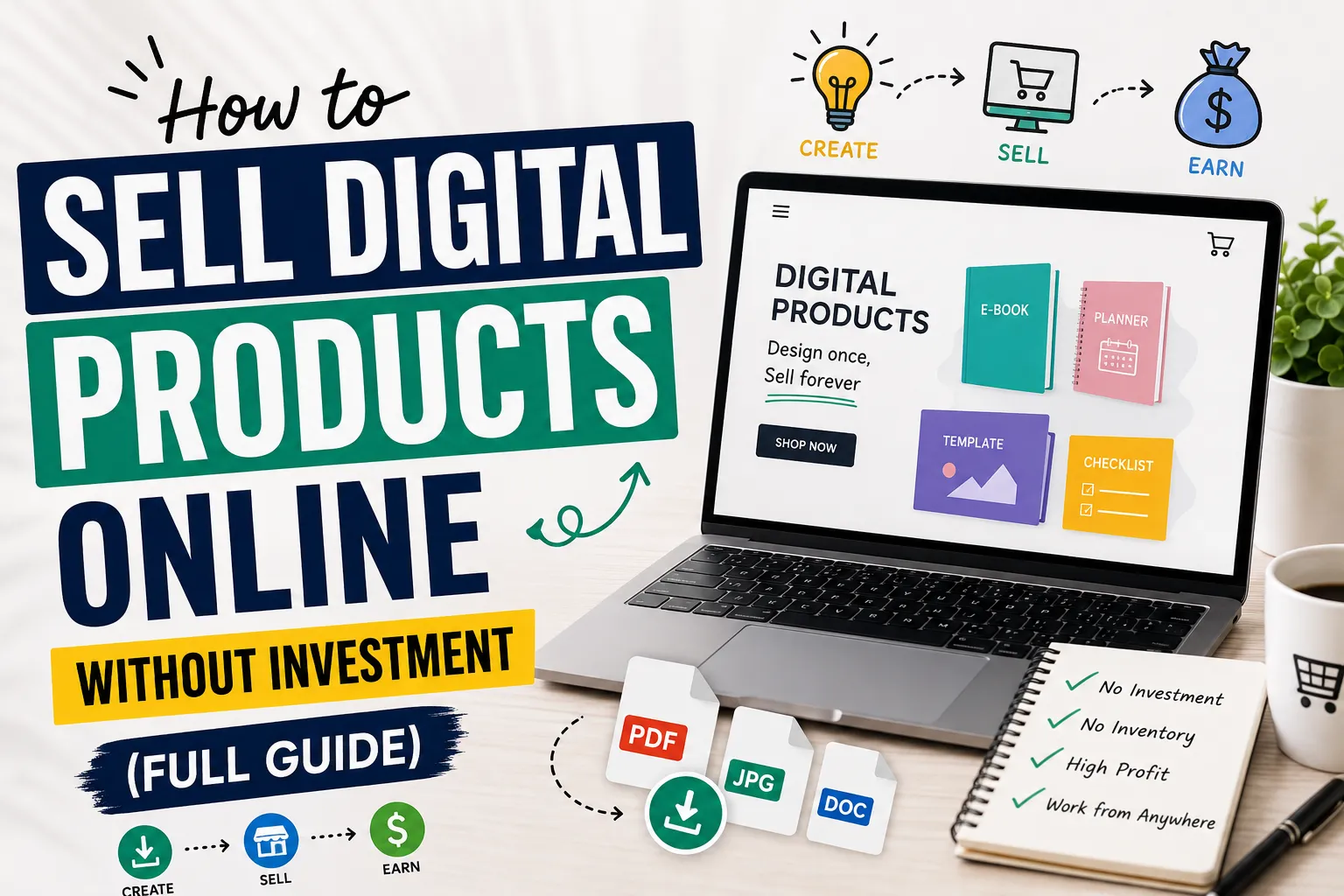
    How to Sell Digital Products Online in 2026-2027 Without Investment (Full Guide)

    Most people overthink this way too much.

    I made a simple Notion budget tracker and threw it on Gumroad for $7. Shared it in a couple of subreddits. Got some sales. Nothing crazy but it worked, and it kept selling without me doing much after that.

    That’s what got me interested in digital products. You make something useful once, and people can buy it anytime. No shipping no storage no big investment upfront. Just something that helps someone solve a small problem.

    It does not work overnight and it is not some magic income machine. But if you pick the right problem build something decent and put it in front of the right people, it can actually work.

    This guide covers how to do that, from picking a product to making your first sale. You can also learn “How To Get Started In E-Commerce.”


    What Exactly Are Digital Products?

    These are simply files or resources that people purchase and download. Nothing physical, nothing to ship.0

    Some popular examples:

    • Canva templates for social media or resumes
    • E-books or focused “how-to” guides in PDF format
    • Digital planners for iPads
    • Printables like habit trackers or budget sheets
    • AI prompt packs for ChatGPT or Midjourney

    A lot of beginners psych themselves out thinking they need expensive software or advanced skills. Honestly, some of the best-selling products out there are refreshingly simple. A one-page checklist solving the right problem will outsell a complicated 80-page e-book nobody asked for. Don’t overthink it.


    Why Digital Products Make So Much Sense

    Both sellers and buyers love digital products for one core reason: convenience. But beyond that, there’s a real financial case for it too.

    • No shipping fees — delivery is instant
    • Zero startup risk — no stock to buy upfront
    • Profit margins of 60–80% or higher since there’s no cost per unit
    • Global reach — sell to someone in New York while sitting in Lahore or Karachi

    If you’re a student, your well-organized notes could be someone else’s lifesaver. If you’re a designer, your templates are someone’s shortcut. Whatever you’re genuinely good at can likely be packaged into a download worth paying for.


    Choosing Your First Product

    Don’t create something randomly. The products that actually sell are built around a specific problem — they save someone time, teach something practical, or make part of their life easier.

    Before creating anything, ask yourself: Who is this for, and what problem does it solve?

    Good starting points:

    • Canva Templates — Small business owners constantly need Instagram posts, pitch decks, or resume designs. You can make solid ones using Canva’s free version and the demand never slows down.
    • Simple E-books or Guides — A focused 10–15 page PDF teaching one specific skill sells extremely well. It doesn’t have to be long — it has to be useful and specific.
    • Printables — Meal planners, to-do lists, budget trackers. Consistently popular on Etsy because people are already searching for them daily.
    • AI Prompt Packs — Most people use ChatGPT but struggle to get quality results. A well-organized prompt pack built around a specific use case — writing, marketing, or studying — is genuinely valuable right now.


    Research Before You Build Anything

    Nich

    This is where most beginners skip ahead too fast, and it costs them weeks of wasted effort.

    Open Pinterest or Etsy and type a broad topic into the search bar. Pay attention to the autocomplete suggestions — those are real searches from real people. If the same specific request keeps appearing, that’s your signal. Demand is already there waiting.

    On Reddit, find communities related to your topic and look at what people ask for repeatedly. That frustration you keep seeing in threads? That’s your product idea hiding in plain sight.

    One practical tip — if you find similar products already selling well on Etsy, that’s actually good news. It confirms people pay for this. Your job is simply to make a better or more specific version.


    Create Your Product for Free

    You don’t need to spend anything to get started. These free tools are genuinely enough:

    • Design: Canva
    • Writing/Guides: Google Docs — write, format cleanly, export as PDF
    • Planners/Organization: Notion
    • Editing: CapCut or Photopea

    Buyers care far more about whether the product actually solves their problem than whether it looks agency-level polished. Clean, clear, and well-organized beats flashy every time.


    Where to Sell

    You don’t need your own website. These platforms handle payments and file delivery for free:

    • Gumroad — Beginner-friendly, have a product live within an hour
    • Payhip — Clean interface, handles downloads automatically
    • Etsy — Best for printables and templates; the audience is already browsing
    • Ko-fi — Great if you have a small following and want low-fee sales

    Start on one platform, master it, then expand later. Also, you can explore “Best Websites to Sell Digital Products Online”


    Make Your Listing Look Professional

    Even an excellent product loses sales when the listing looks sloppy. Buyers make snap judgments based on visuals before reading a single word.

    Use Canva’s free mockup templates to show your product on a laptop screen or tablet. It instantly builds trust and makes your listing look credible. Add multiple preview images showing different sections inside your product — the more transparently you show what’s included, the more comfortable buyers feel hitting that purchase button.


    SEO: How People Actually Find You

    SEO determines whether your product gets discovered or buried. The words in your title, tags, and description directly affect whether you show up in search results.

    Your product title is the most important place to start. Use words your actual buyer would type — not creative names that sound clever but nobody searches for.

    •  Weak: “Cool Budget Tool”
    •  Strong: “Monthly Budget Planner Spreadsheet for College Students”

    In your description, be specific and honest. Explain what’s included, what format the files are in, and who it’s best for. Avoid vague, over-hyped language — buyers are skeptical of exaggerated claims and platforms like Google reward straightforward, helpful content.


    Getting Traffic Without Paying for Ads

    You don’t need an ad budget. Organic traffic is free and more sustainable anyway.

    Pinterest is one of the most underrated channels for digital product sellers. Unlike Instagram posts that disappear after a day, a Pinterest pin can drive clicks for months. Create visually clean pins, write keyword-rich descriptions, and link directly to your shop. Consistency here compounds over time.

    Short videos on TikTok or Instagram Reels work surprisingly well too. You don’t need to go viral — just show your product being used. A 30-second screen recording of your template in action or someone filling out your planner builds more trust than any polished ad ever could.


    Pricing Your Product

    Pricing trips up a lot of beginners — either they price too low out of insecurity or too high before building any trust.

    A simple framework that works:

    • Single templates or printables: $5 – $10
    • Guides, e-books, prompt packs: $15 – $25
    • Full bundles or toolkits: $40+

    Start at the lower end, get some buyers and reviews, then gradually raise your prices. A product with 20 positive reviews can charge significantly more than the same product with zero. Let credibility do the justification work for you.


    Mistakes That’ll Hold You Back

    • Copying others — Don’t resell someone else’s work as your own. You’ll get banned from platforms and your reputation won’t survive it.
    • Waiting for perfection — Launch Version 1 and improve it based on real feedback. The sellers who win are the ones who ship something and iterate, not the ones tweaking endlessly in private.
    • Quitting before SEO kicks in — It takes weeks for listings to start appearing in meaningful search results. Most people give up right before things start moving. Stay consistent.


    Conclusion 

    Selling digital products is one of the most realistic, low-risk ways to build an income stream online. No upfront investment, no inventory, no logistics headaches. Just knowledge, effort, and consistency.

    It won’t happen overnight — but for anyone willing to solve a real problem and stay consistent long enough for momentum to build, it genuinely works.

    Start with one product. Keep it simple. Make it actually useful. And keep going — because the people who succeed here aren’t always the most talented, they’re just the ones who didn’t quit when things moved slowly at the start.


    Frequently Asked Questions (FAQs)

    FAQS


    1, Can beginners sell digital products online?

    Yes, and honestly more beginners are doing this than you’d think. You don’t need to be some tech expert or have years of experience. Starting with something simple like a Canva template, a printable checklist, or a short PDF guide is completely fine. The only thing that really matters is whether your product helps someone — that’s it.

    2, Do I need money to start selling digital products?

    No, and this is genuinely one of the best things about this whole model. Canva is free. Google Docs is free. Gumroad and Payhip let you start a shop without paying anything upfront. Some people start with free tools and make sales without spending much money upfront. The startup costs are extremely low compared to most online businesses.

    3, What are the easiest digital products to sell as a beginner?

    From what I’ve seen, these tend to work really well for beginners:

    • Canva templates
    • Budget planners
    • Printable checklists
    • Study notes
    • Simple e-books
    • AI prompt packs

    These don’t take weeks to build and people regularly search for them on Etsy and Pinterest.

    4, How long does it take to make your first sale?

    There’s no fixed answer here — some people get their first sale within a week, others wait a month or two. It really depends on your product, how well you’ve set up your listing, and whether you’re putting any effort into promotion. What I’d say is don’t panic if nothing happens in the first few days. SEO takes time to warm up. Stay consistent and give it a fair shot.

    5, Which platform is best for selling digital products?

    Honestly it depends on what you’re selling:

    • Etsy — best for printables and templates since buyers are already there looking
    • Gumroad — easiest to set up if you’re just starting out
    • Payhip — simple and clean, good for general digital downloads
    • Ko-fi — works well if you already have a small following somewhere

    Pick one, get comfortable with it, and expand later. Trying to manage five platforms at once when you’re just starting is just overwhelming for no reason.

    6, Do I need a website to sell digital products?

    No, you really don’t — at least not in the beginning. Platforms like Etsy and Gumroad handle everything: payments, file delivery, the whole thing. A personal website might make sense eventually when you’re more established, but worrying about it before your first sale is just putting obstacles in your own way.

    7, Can students sell digital products online?

    Absolutely. Students often have useful knowledge and resources they can turn into digital products. Your lecture notes, study guides, revision planners, or even a simple productivity template — these are things other students would genuinely pay for if it saves them time. You already have the knowledge; you just need to package it properly.

    8, Is selling digital products really passive income?

    Sort of — but I want to be real with you about this. Yes, a product can sell while you’re asleep once it’s properly set up, and that part feels great. But getting to that point takes actual work: researching, creating, writing good listings, and promoting. It’s not the “upload once and retire” fantasy some people sell online. Think of it more like planting seeds — you put in the effort upfront, and then it gradually starts paying off over time.


  • How To Get Started In E-Commerce

    How To Get Started In E-Commerce


    How to Start an E-Commerce Store Using WordPress (A Real Beginner’s Guide)

    Introduction

    Honestly, when I first looked into building an online store, I closed the tab three times before actually starting. It looked like a rabbit hole — hosting, domains, plugins, themes, payments. Where do you even begin?

    But then I just sat down one Saturday and went through it. By evening, the store was live. Not perfect, but live. And looking back, the actual setup was maybe two or three hours of real work.

    If you have been putting this off for the same reasons I did, this guide is for you. No fluff, no vague advice. Just the actual steps.

    If you are confused about platforms, you can also read our detailed comparison of Shopify vs WooCommerce before starting your store.


    Why WordPress and Not Something Else

    A lot of people ask why not just use Wix or Squarespace. Fair question.

    The honest answer is control. On those platforms, you are renting space. They can change pricing, limit features, or shut things down. It has happened before. With WordPress, you own the whole thing: your store, your data, your rules.

    WordPress also grows with you. Start with five products today, scale to five thousand later, same platform. You never hit a wall and have to start over somewhere else.

    That flexibility is why millions of stores, from tiny one-person shops to genuinely large operations, all run on WordPress.


    Shopify vs woocommerce

    Shopify or WooCommerce — Which One Should You Choose

    This comes up constantly so I will be direct about it.

    Shopify Is Best for Quick Setup

    Shopify is a managed platform. You pay monthly, they handle servers and security. Setup is fast and clean. If you want a store running this weekend with minimal friction, Shopify does that job well.

    The catch is fees. Shopify charges transaction fees unless you use their own payment system. On small volumes this barely matters. On anything meaningful it adds up, and you feel it.

    You can also learn “how to start Shopify dropshipping.

    WooCommerce Is Best for Long-Term Growth

    WooCommerce is a free plugin that sits on top of WordPress. You manage your own hosting, which is less scary than it sounds. Once you pick a host, you mostly forget it exists.

    No transaction fees. Full design control. Everything customizable. Costs stay predictable as you grow.

    I have set up stores on both. For anyone building something they actually want to grow, WooCommerce wins. The extra hour of setup at the beginning pays back many times over.


    How WordPress Actually Works

    Simple version: WordPress is software that runs your website. But software needs a computer to run on. That computer is your hosting server.

    You rent server space from a hosting company, point your domain name at it, and install WordPress. After that, everything happens through a browser-based dashboard. No technical knowledge needed for day-to-day use.


    How to Choose the Right Hosting Provider

    This decision matters more than most people realize going in. I learned this the frustrating way.

    I ran a test with the same WooCommerce store on two different hosts. One was a cheap shared plan, the other was a LiteSpeed-based provider. Same store, same products, same theme. On the budget host, pages were taking close to four seconds. On LiteSpeed hosting, the same pages loaded in under one and a half seconds. The difference was immediate and obvious.

    For beginners, I would genuinely suggest looking at Hostinger or SiteGround first. Both come with dashboards simple enough for anyone to navigate, one-click WordPress installation already built in, and automatic SSL certificates so you are not hunting for that separately. Hostinger tends to be cheaper on longer plans. SiteGround has noticeably better support if that matters more to you.

    What Actually Matters When Choosing a Host

    • Servers built on LiteSpeed or NVMe hardware for real-world speed
    • Built-in CDN included, not sold as an add-on
    • Automatic SSL setup without manual configuration
    • One-click WordPress install from the dashboard
    • Uptime track record of 99.9% or better

    One more thing on pricing. The monthly option looks affordable, but it works out most expensive over a year. The 12 to 48-month plans are where the real discounts live. Lock in a longer term at the start and the savings are genuine.


    Why a CDN Matters for Your Store

    A CDN, Content Delivery Network, stores copies of your website files across servers in multiple countries. A visitor in Germany loads your store from a European server. A visitor in the US loads it from an American one.

    For a store with product photos and media files, this makes a real difference in how fast things load for people who are not sitting next to your main server.

    Practical Benefits of Using a CDN

    • Pages load faster regardless of where your visitors are located
    • Traffic spikes during sales periods do not crash your site
    • Basic security protection against common attacks is built in
    • Mobile shoppers get a smoother experience, which increasingly represents most of your traffic

    Most decent hosting providers include CDN access in their standard plans. Check before signing up.


    How to Install WordPress and Get Started

    After setting up hosting, find the WordPress installer in your dashboard. On Hostinger and SiteGround this is right on the main screen. Enter your site name, create a username and password, and WordPress is installed in under two minutes.

    Your dashboard lives at yourdomain.com/wp-admin. Bookmark that.

    How to Pick the Right Theme

    Go to Appearance, then Themes, then search for Astra. It is genuinely one of the best free themes for stores because it loads fast, works cleanly with Elementor, and does not slow down WooCommerce. Install and activate it.

    Then install the Starter Templates plugin. This gives you professionally designed page layouts to import instead of building from a blank canvas. When it asks which builder you prefer, pick Elementor.


    How to Set Up WooCommerce

    Find WooCommerce in the plugin directory, install it, and activate it. A setup wizard runs automatically.

    What the Setup Wizard Asks You

    • Store country and currency
    • First product details including title, price, description, and photos
    • Basic shipping and inventory preferences

    Once the wizard finishes, go delete the sample products it installed. They are just demo content and look out of place in a real store.

    One Setting Most Beginners Miss

    Before adding actual products, go to Settings, then Permalinks, and switch to Post Name. This gives product pages clean URLs like yourstore.com/product-name instead of something with random numbers. It looks professional and performs better in search results. Most people skip this step and quietly hurt their SEO from day one.


    How to Accept Payments With Stripe and PayPal

    WooCommerce works with most payment processors. For a new store, Stripe and PayPal together cover the large majority of what customers want to use.

    Steps to Get Payments Working

    • Open WooCommerce, go to Settings, then Payments
    • Enable Stripe and PayPal, and connect both accounts
    • Save everything
    • Place a real test transaction before opening the store publicly

    That test step is not optional. I skipped it once on an early project and found out the checkout was broken from a customer email the next day. Five minutes of testing would have caught it. Do not repeat that mistake.


    How to Design Your Store With Elementor

    Elementor turns page editing into something visual. You click on text to change it, drag sections around, swap images, and adjust colors. What you see while editing is what visitors see. No guessing, no refreshing to check results.

    Go to Pages, pick whichever page you want to work on, and click Edit with Elementor.

    Spend real time on this. I discovered that how a store looks directly affects whether people trust it enough to buy. It sounds obvious but many beginners rush through design to get to the launch stage. Consistent fonts, real product photos, and a layout that is easy to follow all matter more than most first-time store owners expect.


    How to Configure Shipping

    Open WooCommerce, go to Settings, then Shipping.

    Shipping Settings to Complete

    • Shipping zones covering the regions you plan to sell in
    • Rates for each zone are flat rate, free shipping, or weight-based depending on your products
    • A free shipping minimum if you want to encourage larger basket sizes

    That last one works well in practice. Customers who are a few dollars short of free shipping will often add another item to qualify. It is a simple setup that pushes order values higher without any discounts involved.


    Essential Plugins Worth Installing

    Beyond the basics, a few extra plugins are worth installing from the start.

    Core Store Plugins

    WooCommerce runs your entire store backend. Products, orders, customers, and payments all live here.

    Elementor handles visual design and page customization without any coding required.

    Astra is your theme, keeping the site fast and compatible with everything else.

    Performance and SEO Plugins

    LiteSpeed Cache handles caching, image compression, and speed optimization in one place. On LiteSpeed hosting the improvement is significant. On other hosting it still helps noticeably.

    Yoast SEO walks you through optimizing each product page for search engines. Titles, descriptions, and content structure. For stores relying on organic search rather than paid traffic, this pays off steadily over time.

    Keep the total count reasonable. Every plugin adds code and another thing that can break during updates. Add what you need, skip what you do not.


    Things Most Beginners Forget

    This is the part most setup guides leave out. The visible setup is done, but there is a whole layer underneath that quietly determines whether your store runs reliably.

    1. Set Up Backups From Day One

    WordPress does not back itself up. One bad update, one hosting issue, and everything is gone. Install UpdraftPlus and connect it to Google Drive or Dropbox. Schedule daily or weekly backups depending on how often you update the store. Takes about ten minutes to set up and has genuinely saved stores from complete loss.

    2. Optimize Every Product Image

    Unoptimized product photos are one of the most common reasons stores load slowly. A photo straight from a camera or phone can be several megabytes. A properly compressed version for the web can be under 100 kilobytes with no visible quality difference.

    Resize images to the actual display dimensions before uploading. Then install ShortPixel or Smush to compress them automatically. This one habit keeps your store fast as the product catalog grows.

    3. Activate Your SSL Certificate

    SSL is what puts the padlock icon in the browser bar and switches your URL to https. Most hosts provide this for free through Let’s Encrypt. Activate it from your hosting dashboard, then update both address fields in WordPress Settings to use https. Without SSL, browsers warn visitors that your site is not secure. That warning kills trust before anyone even sees your products.

    4. Fix Email Deliverability Early

    The default WordPress email goes out through your hosting server and often lands in spam. Order confirmations, password resets, and customer notifications all get affected. Install WP Mail SMTP and connect it to a proper sending service like Brevo or Gmail SMTP. This is a fifteen-minute fix that makes your emails actually arrive reliably.

    5. Set Up Abandoned Cart Recovery

    A meaningful number of shoppers add things to a cart and leave without buying. Without a recovery system, those potential sales just disappear. The CartFlows plugin or a dedicated WooCommerce abandoned cart extension lets you follow up automatically with those visitors. Setting this up early means you capture sales from the beginning rather than after you notice the problem months later.

    6. Add Basic Spam Protection

    Forms and checkout pages attract bot submissions without any protection in place. Install Akismet and add basic CAPTCHA to your forms using WPForms or Fluent Forms. Minor setup prevents a growing problem as your traffic increases.


    Common Beginner Mistakes to Avoid

    Most early store problems trace back to the same few decisions.

    1. Going With the Cheapest Hosting

    Cheap hosting is cheap for a reason. Slow servers, shared resources, unreliable uptime. These hurt your store in ways that are hard to see directly but very real in terms of lost visitors and lost sales. Paying a few dollars more per month for a reliable provider is one of the better investments you make early on.

    2. Installing Too Many Plugins at Once

    Every plugin that gets installed adds weight and complexity. Conflicts during updates become more likely. Performance gradually degrades. Install only what solves a specific problem you actually have right now.

    3. Not Checking Mobile Performance

    Most shopping happens on phones. A store that looks good on a laptop but breaks on a small screen is silently turning away most of its potential customers. Test on your own phone, test on someone else’s, and fix what does not work before launch.

    4. Skipping the Checkout Test

    Run a real test order before going live. Check that the payment goes through, the confirmation email arrives, and the order shows up in your WooCommerce dashboard. Every single time, no exceptions.


    FAQS

    Frequently Asked Questions

    Q1. Do I Need to Know How to Code to Build a WordPress Store?

    No. Elementor handles design visually and WooCommerce handles store functions through settings pages. Coding only comes up if you want something very specific that no existing plugin provides.

    Q2. What Will a WooCommerce Store Actually Cost Me?

    WooCommerce is free. Hosting runs roughly three to ten dollars per month on a longer plan. A domain name costs around ten to fifteen dollars per year. You can launch a real store for well under twenty dollars per month total.

    Q3. Is WooCommerce Safe Enough for Taking Payments?

    Yes, if you keep things updated and use proper payment gateways. Stripe and PayPal process card payments on their own secure systems, so sensitive financial data never actually passes through your WordPress site. Add a free SSL certificate from your host and you are covered for standard security requirements.

    Q4. Can I Switch From Shopify to WooCommerce Later?

    Yes. Migration plugins handle the product data and customer records. It takes some careful attention to get right but everything transfers over without starting from scratch.


    Final Conclusion

    There is no perfect moment to start. The store I had put off building for weeks took one afternoon once I actually began.

    Astra handles your theme. Elementor handles your design. WooCommerce runs your store. Stripe and PayPal handle payments. LiteSpeed Cache keeps it fast. Yoast SEO helps people find it. The tools are all there.

    The section on things beginners forget is where this guide differs from most. Backups, SSL, email setup, image compression — none of it is exciting, but all of it matters once your store is actually running and real customers are depending on it working properly.

    Start simple. Get one product live. Test the checkout. Then build from there.

  • Best Websites to Sell Digital Products Online

    Best Websites to Sell Digital Products Online

    Best Platforms to Sell Digital Products and Reach Buyers for Free

    Here is what usually happens. Someone spends weeks building a digital product, puts it on their own website, shares it once on social media, and then waits. Nothing. Two sales to a cousin. Shop closed by month two.

    The product was probably fine. The location was the problem.

    Selling digital downloads on a personal site without an existing audience is genuinely hard. You are asking people to find you when no one knows you exist. Marketplaces fix that. They already have the buyers. You just need to show up with something worth buying.

    Below are the best places to sell digital products, whether you make SVG files, Canva templates, fonts, ebooks, or printables. Each one brings organic traffic you do not have to pay for.

    Digital products


    Quick comparison

    Platform Best for Competition Beginner friendly
    Etsy Printables, SVG files, planners High Yes
    Gumroad Courses, ebooks, templates Medium Very easy
    Creative Fabrica Craft files, cut files, fonts Medium Yes
    Creative Market Fonts, graphics, design assets Medium Yes
    Envato Market Themes, code, video assets High Moderate
    Design Bundles Fonts, graphics, templates Low Yes
    BrandCrowd Logos, brand identity Low Moderate
    DeviantArt Digital art, illustrations Low Easy

    1. Etsy

    Etsy is where most beginners should start. It began as a handmade goods site but now fully supports digital downloads, and that category has grown a lot. Printables, wall art, planners, SVG cut files, and Canva templates are among the strongest product types here.

    According to Similarweb, Etsy ranks among the top global e-commerce destinations by monthly visits. The buyers arrive with intent. They are not scrolling out of boredom. They are searching for something specific and are already in buying mode.

    A teacher started uploading classroom worksheet bundles in her spare time. Eight months later the shop was earning more than her part-time job, with zero ad spend. She simply found search terms that bigger sellers had overlooked.

    Best for: Printables, digital planners, SVG files, wall art. Watch out for: Competitive rankings — keyword research is not optional here

    2. Gumroad

    Gumroad is the easiest starting point if you want to go live fast. No approval process. No complicated setup. You upload a product, set a price, and you are selling. It draws tens of millions of monthly visitors through its own discovery pages.

    What makes it stand out is how well it converts outside traffic. If you have a modest social following or email list, pointing people to a Gumroad listing works extremely well. The checkout is clean and there is almost no friction between finding your product and paying for it.

    A freelance writer with roughly 3,000 followers launched a writing template pack. Forty sales in the first week from her own audience, then steady organic sales from Gumroad’s marketplace pages for months after.

    Best for: Courses, ebooks, templates, any digital product type. Watch out for: Organic discovery is slower here without some outside promotion to start

    3. Creative Market

    Creative Market has earned its reputation as a trusted destination for design resources. The audience is largely designers, content creators, and small business owners who buy regularly. Fonts, graphics, templates, photos, and web assets all do well here.

    One thing that became obvious after looking at successful shops: the sellers doing best are not always the most talented. They picked a specific niche and kept producing for it. Consistency beats raw skill most of the time on this platform.

    A designer narrowed her entire shop to social media templates for real estate agents only. Very specific. Within a year it was generating a reliable monthly income without a single paid ad.

    Best for: Fonts, design templates, graphics, web assets. Watch out for: Generic products get buried — the more specific your niche, the better

    4. Creative Fabrica

    Creative Fabrica has built a loyal base in the crafting world. If your products target people who use cutting machines, embroidery software, or similar tools, this is one of the most focused audiences available online. SVG cut files, knitting patterns, embroidery designs, and craft fonts all perform well here.

    The buyers return regularly. A good product keeps earning long after it is first uploaded, which is exactly what you want from a passive income model.

    Best for: SVG files, craft downloads, embroidery patterns, and cut machine files. Watch out for: Products outside the craft niche tend to underperform here

    5. Envato Market

    Envato is a network of specialized storefronts. ThemeForest handles WordPress themes. CodeCanyon covers scripts and plugins. GraphicRiver takes fonts and printables. VideoHive is for motion graphics. Each has its own audience and its own standard.

    The bar here is noticeably higher than most platforms on this list. From my experience studying what actually sells here, it rewards technical depth far more than general graphic skill. Developers and motion designers build stronger income streams on Envato than generalist creators usually do.

    Best for: WordPress themes, code tools, motion graphics, and professional templates. Watch out for: Quality review process is strict — low-effort uploads get rejected

    6. Design Bundles

    Design Bundles draws over two million monthly visitors according to Similarweb, but has far fewer active sellers than Creative Market or Etsy. That gap is useful. New listings stay visible longer and there is less pressure pushing your products off the front page within hours.

    For someone just starting out, lighter competition makes early traction more achievable.

    Best for: Fonts, graphics, printable templates. Watch out for: Smaller total audience compared to the top platforms

    7. BrandCrowd

    BrandCrowd focuses almost entirely on logos and brand identity assets. The buyers arriving here are small business owners who need a logo and are ready to spend, not casually browsing. According to Similarweb, it draws over two million monthly visitors within that very specific niche.

    For a logo designer, the buyer’s intent is a far better environment than competing on a general marketplace where logos sit next to completely unrelated products.

    Best for: Logos, brand kits, identity assets. Watch out for: Design quality expectations are higher than average here

    Which platform should you actually start with?

    Start with Etsy if you sell printables, SVG files, planners, or wall art and want organic search traffic from day one.

    Start with Gumroad if you have any social media audience or email list, even a small one. It converts outside traffic better than anything else here.

    Start with Creative Fabrica if your products serve the craft and DIY community. The audience is focused and keeps coming back.

    Start with Envato if you build professional-grade themes, plugins, or motion graphics and your work can pass a quality review.

    Pick one or two platforms. Go deep. The sellers building real income are the ones who learn one marketplace well, optimize properly, and keep adding products over time.


    FAQS

    Frequently asked questions

    Q1: Can I sell the same product on more than one marketplace?

    Yes, usually. A few platforms require exclusivity, so check the seller’s terms before cross-listing. Most do not restrict it at all.

    Q2: Do I need design experience to get started?

    Not necessarily. Many successful sellers use Canva, Figma, or Inkscape without formal training. What matters more is whether the product serves a clear need for a specific buyer.

    Q3: How do these platforms pay sellers?

    Most use PayPal, Stripe, or direct bank transfer. Schedules vary — some pay weekly, others monthly. Always check payout thresholds before committing time to a platform.

    Q4: Is the passive income claim realistic?

    Largely yes. Once a product is live and listed properly, each sale requires no extra work from you. The upfront effort is in creating the product and writing a strong listing. After that, income can continue without ongoing effort per sale, although adding new products regularly tends to improve long-term results considerably.


    Final thoughts

    Building income from digital products is one of the more realistic side income models available right now. Products scale without restocking. Delivery is instant. And the marketplaces above already have the buyers.

    What they do not have is your product. That part is still on you.

    Start somewhere. Upload something real. Pay attention to what buyers in that marketplace are actually searching for and adjust from there. The sellers making consistent money from digital products are not always the most talented. They are the most consistent.


    Disclaimer

    Disclaimer 

    We are not affiliated with or sponsored by any platform mentioned. Traffic figures referenced from Similarweb and are approximate estimates only.

    The information provided in this article is for educational and informational purposes only. Any earnings, statistics, performance figures, tool recommendations, or examples mentioned are based on publicly available information, personal opinions, industry trends, or general research 

  • Shopify Vs WooCommerce! Complete comparison

    Shopify Vs WooCommerce! Complete comparison

    Shopify vs WooCommerce: Which One Is Actually Better for Your Online Business?

    Picking the wrong platform can cost you months of work and a surprising amount of money. I have seen it happen. Someone spends three weeks building a Shopify store, then realizes they cannot customize the checkout the way they need. Someone else spends two months wrestling with WooCommerce before admitting they just wanted something that worked without a developer on speed dial.

    Both platforms are genuinely good. But they are built for different kinds of people, different budgets, and different long-term goals. This article goes through every important angle, so by the end you are not just informed — you actually know which one makes sense for your situation.

    You can also learn “How To Get Started In E-Commerce.


    Shopify vs woocommerce


    1. Ease of Use

    Let me be direct: Shopify is easier. There is no asterisk on that.

    The platform was designed exclusively for selling online, and it shows. You log in, pick a theme, add your products, connect a payment method, and you are live. No server setup, no plugin conflicts, no wondering whether your PHP version is compatible. From my experience helping a few people launch their first stores, the typical Shopify beginner is selling within a day or two. Sometimes less.

    WooCommerce is a different situation entirely. It is a plugin that runs on top of WordPress, which is already its own learning curve. Before you ever open the WooCommerce settings, you have bought hosting, pointed your domain, installed WordPress, and figured out at least the basics of the WordPress dashboard. For someone coming in completely fresh, that is a lot of steps before you even see a product listing.

    That said — and this matters — the people who push through that early friction often end up with more capable stores. The complexity is not random. It is the price of flexibility.

    Real example: A friend who makes handmade soap started on Shopify and was taking orders by day three. She did not touch a single line of code. Another person I know who sells vintage photography equipment chose WooCommerce specifically because he wanted to build a custom rental system alongside his shop. Shopify simply could not do what he needed without an expensive workaround.


    2. Pricing: What You Are Actually Paying For

    Shopify’s Basic plan runs around $39 per month. From there, the Shopify plan sits at roughly $105 per month and the Advanced at around $399. Those numbers are before transaction fees, which Shopify charges on every sale processed outside of Shopify Payments. Depending on your plan, that fee ranges from 0.5 percent to 2 percent per transaction. For a store doing $10,000 a month in sales, that is a real number.


    WooCommerce itself costs nothing to download. What you are actually paying for is hosting, which typically lands between $5 and $30 per month for a basic setup, and whatever premium themes or plugins you decide you need. Some plugins are genuinely free and excellent. Others cost $50 to $200 per year. The math works out differently for every store depending on what tools they actually use.


    Here is the honest version of the pricing comparison: at small scale, WooCommerce usually wins on cost. As you grow and start needing more Shopify apps, or as your WooCommerce store needs better hosting and a developer to maintain it, the gap narrows faster than most people expect.

    Note: No hosting provider is affiliated with either platform. You choose whoever you want.

    Real example: A clothing boutique I looked at was paying $39 for Shopify Basic plus around $25 in monthly transaction fees, plus three apps totaling another $45 per month. Their actual monthly platform cost was closer to $110. A comparable WooCommerce setup for the same store, with decent hosting and two paid plugins, was running about $60 per month.


    3. Customization: The Ceiling on What You Can Build

    Shopify gives you a polished set of tools and a clearly defined box to work in. The theme editor handles colors, fonts, layout sections, and basic design choices without any coding. For most stores, that is plenty. But when you want to go deeper, you hit the walls. Structural changes require Liquid, Shopify’s own templating language. Some design decisions simply cannot be made through the editor at all.

    WooCommerce has no equivalent ceiling. WordPress is open source, meaning the entire codebase is yours to modify. You can rework the checkout flow, build entirely custom product pages, adjust how taxes are calculated, change the structure of your URLs, and do it all without asking anyone’s permission or paying for an app. The plugin library alone contains thousands of extensions covering almost any functionality you can think of.

    What surprised me when going back and forth between the two platforms was how quickly you bump into Shopify’s limits when you have a specific, slightly unusual idea. On WooCommerce, unusual ideas are just features waiting to be built.

    Real example: A business selling personalized gifts needed customers to upload images at checkout and preview them on the product. On Shopify, a purpose-built app for that feature cost $29 per month. A WooCommerce developer built the same thing using a free plugin plus about four hours of custom work. After the first year, the WooCommerce approach had already paid for itself.


    4. Features and Functionality

    Shopify’s built-in feature set is genuinely solid. Hosting is included and managed. Payment processing is ready to go. Inventory management, discount codes, abandoned cart recovery, basic SEO settings, and integration with major social selling platforms like Instagram and Facebook are all there by default. For the majority of store owners, this covers everything they need for years.

    The limitation shows up when you want something beyond the standard toolkit. Advanced reporting, for instance, is locked to the higher-tier plans. Certain payment gateways are not available depending on your location. When you do need to extend Shopify, you are almost always going through the app store, and apps have monthly fees.

    WooCommerce comes with a complete content management system underneath it. That means you can run a full blog, create long-form guides, build landing pages, and manage all of it from the same admin dashboard as your store. For businesses where content marketing is part of the growth strategy, this integration is a genuine advantage. After testing different approaches to SEO-driven e-commerce, I found that WooCommerce stores with active blogs consistently outranked their Shopify counterparts for informational search terms, primarily because WordPress’s publishing tools are just more mature.

    Real example: An outdoor equipment retailer built their WooCommerce store alongside a weekly hiking and gear guide section. Within 18 months, that content was driving roughly 40 percent of their organic store traffic. Replicating that strategy on Shopify would have required a separate blog platform and a workaround to connect the two.


    5. Scalability: Can It Handle Growth?

    Shopify scales without you having to think about it much. Traffic spikes, seasonal rushes, a product going viral — the infrastructure absorbs it. When stores reach serious volume, Shopify Plus handles enterprise-level operations including multi-storefront management and advanced checkout customization. The starting price for Plus is around $2,000 per month, so it is not a small decision.

    WooCommerce can absolutely reach the same scale, but the path there is more hands-on. Faster growth means upgrading your hosting sooner. Heavy traffic means you need caching configured properly. A large catalog means database optimization becomes a real conversation. None of this is impossible — plenty of large WooCommerce stores handle enormous volume without issues — but it requires either technical knowledge or a developer you trust.

    One thing that became obvious after watching several stores grow through both platforms: the businesses that scaled most smoothly on WooCommerce were the ones that invested in good hosting early and did not wait until performance became a problem.

    Real example: A print-on-demand store grew from around 100 orders monthly to over 4,000 in about two years. They stayed on WooCommerce with a developer on retainer and upgraded to a managed hosting plan at around $80 per month. It handled the load fine. A different store owner in a similar niche, without technical support, switched to Shopify at around the 500-order-per-month mark because managing performance on WooCommerce was simply too much to deal with alongside running the actual business.


    6. Support: Finding Help When You Need It

    Shopify has 24/7 support through live chat, phone, and email. It is built into the platform. When something breaks at 11pm on a Friday, there is someone to contact. That peace of mind is worth real money to a lot of business owners, particularly those without a technical background.

    WooCommerce does not have an official support team in the same way. Help comes from the WordPress community — forums, documentation pages, YouTube, independent developers, and the WooCommerce knowledge base. The community is large and generally quite good. But finding the right answer can take hours, and applying a fix correctly can take more time on top of that.

    The community approach is not inherently worse. In many cases, forum answers are more detailed and technically accurate than anything a platform support agent would provide. But the timeline is unpredictable, which matters when a problem is actively costing you sales.

    Real example: A small hotel used a WooCommerce booking plugin that broke after a routine WordPress update. The fix existed in a forum thread, but finding it, verifying it was the right solution, and implementing it took about half a day. A Shopify merchant with a broken checkout contacted support and was back online in under an hour.


    Statistics: Market Data Worth Knowing

    Numbers help put both platforms in perspective. According to data from BuiltWith and W3Techs, two of the most widely referenced web technology tracking services, WooCommerce powers an estimated 6 to 7 million active online stores globally as of recent measurements, making it the most installed e-commerce solution in terms of raw volume. Shopify, according to StoreLeads and BuiltWith data, powers approximately 4 to 4.5 million live merchant stores.

    In terms of market share specifically within e-commerce platforms, W3Techs data shows WooCommerce consistently holds around 38 to 40 percent of all online stores using a measurable platform, while Shopify holds roughly 26 to 29 percent. WordPress itself, the foundation WooCommerce runs on, powers over 43 percent of all websites on the internet, according to W3Techs  which explains a significant portion of WooCommerce’s adoption numbers.

    From a revenue standpoint, Shopify’s annual gross merchandise volume surpassed $235 billion in 2023 according to the company’s own published financial reporting, reflecting the commercial weight of its merchant base despite having fewer total stores than WooCommerce. The average Shopify merchant, in other words, tends to do more revenue per store.


    Tool Stack: What a Real Setup Looks Like on Each Platform

    You will not just install one of these platforms and be done. Here is what a functional, properly equipped store actually requires on each side.

    For Shopify, the realistic stack looks like this: Shopify Payments handles transactions and avoids the extra transaction fee. Klaviyo or Omnisend manages email flows and campaigns. Judge.me covers product reviews. A basic SEO app like Plug In SEO catches technical issues. Canva handles product image editing. Google Analytics connects via the native channel. Depending on your niche, you might add one or two more apps, each at $10 to $30 per month.

    For WooCommerce, a solid starting setup includes managed WordPress hosting from somewhere like SiteGround, Kinsta, or WP Engine. The free Storefront theme or a premium theme around $50 to $80 as a one-time cost gets your design sorted. Yoast SEO or Rank Math handles optimization. WP Rocket or LiteSpeed Cache keeps load times reasonable. FluentCRM or Mailchimp for WooCommerce manages email. Stripe or PayPal through WooCommerce Payments processes orders. Most of these tools either have generous free tiers or one-time costs rather than monthly subscriptions.


    Mistakes Beginners Make (On Both Platforms)

    The biggest Shopify mistake I see is underestimating app costs. People start on the Basic plan, add five or six apps that each seem reasonable individually, and suddenly their monthly platform cost has doubled. Before launching, make a list of every feature you need and check whether it is built in or requires a paid app.

    On WooCommerce, the most expensive mistake is cheap hosting. It feels like savings up front. Six months later, the store is slow, support tickets take days to resolve, and recovery from a bad backup is a nightmare. Quality managed WordPress hosting costs more but saves you from problems that cheap hosting practically guarantees.

    Both platforms suffer from the same plugin and app overload problem. Every additional tool is a potential conflict, a security surface, or a performance drag. The discipline of removing what you do not actively need is something most store owners learn the hard way.

    Mobile testing gets skipped constantly. Store owners build everything on desktop, check that it looks fine on their phone once, and consider it done. Real mobile testing means going through the full checkout process on multiple devices, in multiple browsers, with slow network conditions simulated. More than 60 percent of e-commerce traffic comes from mobile at this point, so that testing is not optional.

    One more: ignoring page speed until it becomes a crisis. Research consistently shows that a one-second delay in load time can reduce conversions by 7 percent or more. Both platforms need active attention to speed, and both can deliver fast stores. Neither does it automatically without some deliberate setup work.


    Conclusion

    After going back and forth between these platforms across different kinds of projects, my honest take is this: Shopify is the right choice when you want to focus on the business rather than the technology. You pay for that convenience, but for a lot of people, it is worth every dollar.

    WooCommerce is the right choice when you want the technology to bend to your business rather than the other way around. It takes more work to set up and more ongoing attention to maintain, but the ceiling is genuinely higher and the long-term cost is often lower.

    Neither platform is going to fail you if you choose correctly for your situation. The stores that struggle are usually the ones where someone picked based on what a friend used, or what showed up first in a Google search, without actually thinking through what their specific store needs.

    Take the free trial on Shopify. Spin up a test WooCommerce install on cheap hosting just to feel the difference. Then make the call.


    FAQs:

    FAQS

    Which platform is better for a complete beginner with no technical experience?

    Shopify is the more approachable starting point for someone with no technical background. Hosting, security updates, and platform maintenance are all handled for you. WooCommerce requires you to manage a WordPress installation, which involves its own setup process and ongoing maintenance decisions.


    Is WooCommerce truly free to use?

    The plugin itself costs nothing to install. Running a real store on it, though, means paying for hosting, a domain name, and likely a few premium plugins or a theme. A realistic functional setup runs somewhere between $20 and $60 per month depending on the hosting quality and which tools you use.


    Does Shopify charge fees on every sale?

    Yes, unless you process payments through Shopify Payments. If you use a third-party payment gateway, Shopify charges between 0.5 percent and 2 percent per transaction depending on your plan. Those fees disappear if Shopify Payments is available in your country and you choose to use it.


    Which platform gives better SEO results?

    WooCommerce paired with a plugin like Yoast SEO or Rank Math gives you more granular technical control — schema markup, permalink structure, page speed optimization through caching plugins, and detailed on-page settings. Shopify’s SEO tools are solid for standard use but restrict some configurations that matter at the more technical end of optimization.


    Can I migrate from one platform to the other later?

    Yes, but it is not painless. Products, customer data, and order history can be transferred using migration tools, but your design work will need to be rebuilt from scratch on whichever platform you move to. The sooner you pick the right platform, the less migration work you will eventually face.


    Disclaimer

    Disclaimer

    The information shared in this article is based on personal research and general experience. I have written this article to help people who are genuinely looking to learn not to make any guarantees about results or earnings.

    Everyone’s situation is different. What works for one person may not work exactly the same way for another so please use your own judgment before making any decisions based on what you read here.

    Some of the tools, platforms, or methods mentioned in this article may change over time. I do my best to keep things accurate but I can’t guarantee that every detail stays up to date forever.

    This article is for informational purposes only and it is not professional financial, legal, or business advice. If you’re making serious decisions, especially around money or business, please consult a qualified professional.

    If there are any affiliate links or sponsored mentions in an article they will be clearly disclosed. I only recommend things I genuinely believe are useful.

    Thanks for reading and I hope you found something valuable here.


    Found this guide useful? Share it with someone who is thinking about starting freelancing. And if you have a question about getting started, fill out the contact form. Real questions get real answers.

    [contact-form][contact-field label=”Name” type=”name” required=”true” /][contact-field label=”Email” type=”email” required=”true” /][contact-field label=”Website” type=”url” /][contact-field label=”Message” type=”textarea” /][/contact-form]