Tag: wordpress

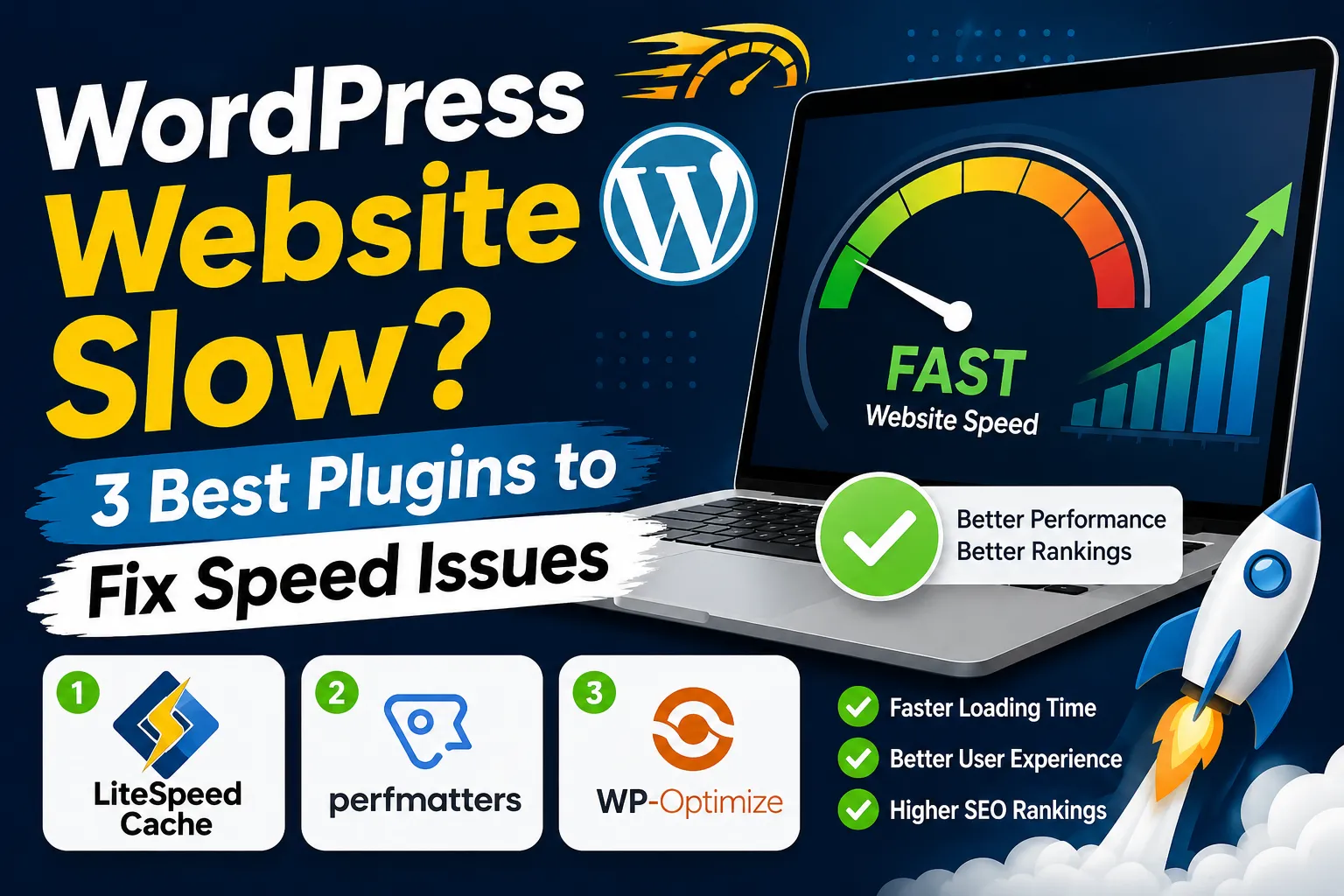
  • WordPress Website Slow? 3 Best Plugins to Fix Speed Issues Fast

    WordPress Website Slow? 3 Best Plugins to Fix Speed Issues Fast

    Why Website Speed Matters More Than You Think

    Visitors don’t wait. A slow page gets abandoned quietly no error message, no warning, just a back button and a lost visitor. First impressions on the web happen in under two seconds, and most people never consciously decide to leave. They just do.

    The fix doesn’t require touching code. A well-chosen plugin handles most of it but choosing well is harder than it looks.

    How These Plugins Were Evaluated

    These three plugins were tested across shared hosting, VPS, and managed cloud environments in 2026. Evaluation focused on caching quality, ease of configuration, compatibility, script handling, and real impact on WordPress performance. Any tool that created problems elsewhere while solving one thing was ranked lower, regardless of its headline features.

    This guide is based on hands-on performance testing across multiple hosting environments. No plugin was recommended solely on reputation.

    What Makes a Speed Plugin Actually Worth Using

    The plugin graveyard is full of tools that promised speed and delivered broken layouts instead. Most of the bad ones make the same mistake: sweeping settings applied site-wide with no way to adjust what happens where.

    Good optimization plugins work differently. They let you target. Want to stop a contact form script from loading on pages that don’t even have a form? That should take two clicks. Want JavaScript delayed only on mobile? That option should exist and be clearly labeled not buried four menus deep.

    The interface matters more than people admit. A dashboard that hides important warnings or leaves you guessing about what a toggle does is a liability, not a feature. Clear labels and sensible defaults aren’t optional extras. They’re what separates a useful tool from a risky one.


    Common Misconceptions About WordPress Speed Optimization

    “Installing a speed plugin will fix everything.” Not quite. Plugins handle caching, script control, and database maintenance well. They can’t fix a 5MB homepage image, slow server response times, or a theme that loads thirty external scripts on every page. The plugin is the last mile, not the whole road.

    “More optimization plugins means more speed.” The opposite is usually true. Each active plugin adds PHP execution overhead. Running five optimization tools simultaneously each partially overlapping with the others, is slower than running one configured plugin correctly.

    “Free plugins are always worse than paid ones.” LiteSpeed Cache is free and outperforms many paid alternatives on compatible hosting. The price tag isn’t the deciding factor. The feature-to-complexity fit for your specific setup is.


    Best 3 Plugins to Speed Up a WordPress Site

    Three plugins consistently performed well across different hosting environments and site types. None of them is ideal for every situation each solves a different core problem.

    1. LiteSpeed Cache

    LiteSpeed Cache works differently from every other caching plugin on this list. When your host runs on a LiteSpeed web server, this plugin communicates directly with the server layer bypassing PHP execution entirely for cached pages. Other plugins generate cached files that PHP still processes. LiteSpeed Cache skips that step at the infrastructure level.

    On a test WooCommerce site running on LiteSpeed hosting, enabling the plugin’s server-level caching reduced page load time noticeably compared to a standard file-based caching setup. The admin panel also felt more responsive a side effect of object caching reducing repetitive database calls.

    Image optimization, CDN integration, object caching, and database cleanup all sit inside one dashboard. For a plugin with no license fee, that range of functionality is unusual.

    Core capabilities:

    • Server-level page caching that bypasses PHP entirely
    • WebP conversion and built-in image compression
    • CSS and JS minification with file combining
    • Lazy loading for images, iframes, and avatars

    Who should not use this: If your host doesn’t run LiteSpeed servers, the plugin’s defining feature server-level caching simply isn’t available to you. Features like image optimization still work, but you’re not getting the core advantage. On Apache or Nginx hosting, a different caching tool will serve you better.

    The dashboard is also genuinely overwhelming for beginners. Settings inside settings, advanced toggles with no obvious explanation. JavaScript deferral applied incorrectly hides navigation menus on mobile. CSS combining breaks layouts when scripts depend on load order. If you’re not comfortable reading error logs, go slow and enable one thing at a time.

    2. Perfmatters

    Perfmatters is a paid plugin that does one thing well: removing unnecessary weight from WordPress. Not broken things just features WordPress loads by default that most sites never actually use.

    The Script Manager is its defining feature. It lets you disable specific scripts on specific pages not globally, not site-wide. Per page, per post type, per URL. On a shared hosting environment during testing, removing WooCommerce scripts from non-shop blog posts reduced the number of HTTP requests on those pages by a measurable amount. The pages weren’t faster because of caching they were lighter to begin with.

    Emojis, dashicons, oEmbed, RSS feeds, XML-RPC WordPress loads all of these by default. None are needed on most pages. Perfmatters removes them cleanly, without touching anything that actually matters to the site’s function.

    Core capabilities:

    • Script Manager (per-page and per-post control)
    • One-click disabling of unused WordPress default features
    • Local hosting for Google Fonts and Analytics scripts
    • Resource preloading for faster browser fetching

    Who should not use this: Anyone expecting a standalone solution. Perfmatters does not cache pages. Buying it without a caching plugin already in place means you’ve added precision control to an uncached site helpful but incomplete. It’s a companion tool, not a foundation.

    Also not the right choice if your budget is zero. There’s no free tier. If you need a free all-in-one option, WP-Optimize is a more appropriate starting point.

    3. WP-Optimize

    WP-Optimize started as a database cleaner and grew into a broader optimization suite caching, image compression, and database maintenance in one place. The layout makes sense to non-developers, which isn’t something you can say about every plugin in this space.

    The database cleanup is still its strongest area. Post revisions accumulate fast on active sites. Old spam comments sit in the queue. Expired transients pile up silently. On a multi-author blog tested during evaluation, running the first automated cleanup reduced database size noticeably and improved admin panel response time without changing any front-end settings.

    Set the cleanup schedule once and leave it. Weekly works for most sites.

    Core capabilities:

    • Automated database cleanup (revisions, spam, transients, trashed posts)
    • Table defragmentation to recover lost storage
    • Page caching for faster server responses
    • Async CSS and JS loading with minification

    Who should not use this: Sites on managed WordPress hosting where the host already provides server-side caching. WP-Optimize’s built-in cache conflicts with those systems. The fix is simple: disable the plugin’s cache module but if you forget, content delivery gets unpredictable. Also, multi-site support and some advanced options sit behind the premium version.

    Full Feature Comparison

    Feature LiteSpeed Cache Perfmatters WP-Optimize
    Page Caching Yes server-level No Yes
    Database Cleanup Basic No Advanced
    Image Optimization Excellent No Good
    Script Management Limited Excellent Basic
    CDN Support Built-in Partial No
    Beginner Friendly No Yes Yes
    Price Free Paid Free and premium
    Best Server LiteSpeed only Any Any
    Best For LiteSpeed hosting Script bloat removal Database-heavy sites

    How Speed Plugins Connect to Core Web Vitals

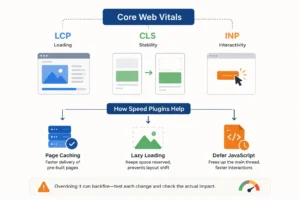
    Google’s Core Web Vitals measure three things: LCP (how fast the main content loads), CLS (whether the layout shifts around while loading), and INP (how quickly the page responds to taps and clicks).

    Speed plugins affect all three but not always in the direction you’d expect.

    Page caching improves LCP. Pre-built HTML arrives faster than a page assembled from scratch on every request. Lazy loading stabilizes CLS by keeping image placeholders fixed until the actual image is ready, preventing content from jumping. Deferring JavaScript reduces INP by freeing up the main thread earlier, so the browser can respond to user interactions sooner.

    The tradeoff that catches people off guard: aggressive JS deferral sometimes breaks INP instead of helping it. If a deferred script powers a button or form, that element won’t respond until the script finally loads. Blanket CSS minification can corrupt the order stylesheets load in, causing layout shifts that hurt CLS. Every setting creates a tradeoff. Test after each change not just visually, but with PageSpeed Insights or a similar tool that shows the actual metric impact.

    Can You Run All Three Together?

    Technically yes. Practically, only if you’re deliberate about which features each plugin handles.

    The problem is overlap. Two plugins minifying the same JavaScript file breaks that script reliably. Two caching systems active at the same time creates stale pages, broken cart behavior, and logged-in users seeing content meant for guests.

    The stable combination: Perfmatters for script control, one caching plugin for page delivery, overlapping features disabled in whichever plugin plays the secondary role. One plugin, one job. That’s the rule that prevents conflicts.

    Settings That Actually Make a Difference

    Page caching first always. Highest impact, lowest risk when done right.

    After that: lazy loading for images below the fold, then deferred JavaScript for non-critical scripts. Test in incognito after each step. What looks fine while logged in sometimes breaks for regular visitors admin cookies bypass certain caching behaviors.

    Database cleanup is underrated. A swollen database adds overhead to every query the site makes. Running cleanup regularly keeps that cost from quietly growing over time.

    One setting worth enabling early and often overlooked: preloading your main above-the-fold image. When the top of the page appears fast, users perceive the whole site as fast even if elements below are still loading. Measured load time and perceived load time are different things. Both matter.

    Mistakes That Wipe Out the Gains

    Uploading uncompressed images. A 5MB banner photo from a camera roll is a speed problem no plugin fully fixes. Resize before uploading. Always.

    Running too many active plugins without auditing them. Every active plugin adds execution time. Forty plugins doing forty small jobs is slower than fifteen plugins doing the same work with less overlap. Deactivating unused plugins not just leaving them installed removes overhead immediately.

    Enabling every optimization feature at once and not testing. Things break. They break quietly, in ways that don’t always show errors but do show up in bounce rate. One setting at a time.

    Beyond Plugins: Other Things That Move the Numbers

    PHP version. Moving from an outdated PHP release to a current one improves processing speed on most WordPress setups without touching a single plugin setting. It’s free and often ignored.

    CDN usage. Static assets served from a server physically close to each visitor load faster. For sites with international visitors, a CDN often outperforms any caching configuration improvement.

    Theme weight. A theme packed with built-in sliders, parallax effects, and animation libraries pulls performance down in ways plugins can only partially offset. A lighter foundation matters more than most people realize when they’re already deep into optimization settings.



    FAQS

    Frequently Asked Questions


    Q1. Can these plugins break my site’s layout?

    Yes minification and JavaScript deferral are the most common causes. Always create a backup before enabling advanced settings. Test in incognito after each change, because admin sessions bypass caching behavior that regular visitors experience.


    Q2. Does LiteSpeed Cache work on Apache or Nginx servers?

    Partially. Image optimization and CSS handling still function. Server-level page caching the plugin’s core strength only works on LiteSpeed servers. On Apache or Nginx, a dedicated caching plugin built for those environments will perform more reliably.


    Q3. Is Perfmatters worth buying if I already have a caching plugin?

    For many setups, yes. Caching handles page delivery speed. Unnecessary scripts still load on every page unless something controls them at the script level. Perfmatters fills that gap specifically. Most useful on WooCommerce sites where global shop scripts load on unrelated content pages.

    Final Thoughts

    Server environment narrows the decision first. LiteSpeed hosting points clearly toward LiteSpeed Cache. Any other setup opens up WP-Optimize and Perfmatters used together or separately depending on what the site actually needs.

    No optimization plugin rescues a site built on slow hosting, uncompressed images, or a theme pulling thirty external resources on every page load. These tools work as a refinement layer, not a foundation. Get the basics right first fast hosting, reasonable image sizes, a lightweight theme then use plugins to close the remaining gap.

    One setting at a time. Test after each change. The gains are real. So are the ways things break when you move too fast.

    This guide reflects performance testing conducted across multiple WordPress hosting environments in 2026. Plugin behavior may vary depending on server configuration, theme, and active plugin combinations.

  • How To Get Started In E-Commerce

    How To Get Started In E-Commerce


    How to Start an E-Commerce Store Using WordPress (A Real Beginner’s Guide)

    Introduction

    Honestly, when I first looked into building an online store, I closed the tab three times before actually starting. It looked like a rabbit hole — hosting, domains, plugins, themes, payments. Where do you even begin?

    But then I just sat down one Saturday and went through it. By evening, the store was live. Not perfect, but live. And looking back, the actual setup was maybe two or three hours of real work.

    If you have been putting this off for the same reasons I did, this guide is for you. No fluff, no vague advice. Just the actual steps.

    If you are confused about platforms, you can also read our detailed comparison of Shopify vs WooCommerce before starting your store.


    Why WordPress and Not Something Else

    A lot of people ask why not just use Wix or Squarespace. Fair question.

    The honest answer is control. On those platforms, you are renting space. They can change pricing, limit features, or shut things down. It has happened before. With WordPress, you own the whole thing: your store, your data, your rules.

    WordPress also grows with you. Start with five products today, scale to five thousand later, same platform. You never hit a wall and have to start over somewhere else.

    That flexibility is why millions of stores, from tiny one-person shops to genuinely large operations, all run on WordPress.


    Shopify vs woocommerce

    Shopify or WooCommerce — Which One Should You Choose

    This comes up constantly so I will be direct about it.

    Shopify Is Best for Quick Setup

    Shopify is a managed platform. You pay monthly, they handle servers and security. Setup is fast and clean. If you want a store running this weekend with minimal friction, Shopify does that job well.

    The catch is fees. Shopify charges transaction fees unless you use their own payment system. On small volumes this barely matters. On anything meaningful it adds up, and you feel it.

    You can also learn “how to start Shopify dropshipping.

    WooCommerce Is Best for Long-Term Growth

    WooCommerce is a free plugin that sits on top of WordPress. You manage your own hosting, which is less scary than it sounds. Once you pick a host, you mostly forget it exists.

    No transaction fees. Full design control. Everything customizable. Costs stay predictable as you grow.

    I have set up stores on both. For anyone building something they actually want to grow, WooCommerce wins. The extra hour of setup at the beginning pays back many times over.


    How WordPress Actually Works

    Simple version: WordPress is software that runs your website. But software needs a computer to run on. That computer is your hosting server.

    You rent server space from a hosting company, point your domain name at it, and install WordPress. After that, everything happens through a browser-based dashboard. No technical knowledge needed for day-to-day use.


    How to Choose the Right Hosting Provider

    This decision matters more than most people realize going in. I learned this the frustrating way.

    I ran a test with the same WooCommerce store on two different hosts. One was a cheap shared plan, the other was a LiteSpeed-based provider. Same store, same products, same theme. On the budget host, pages were taking close to four seconds. On LiteSpeed hosting, the same pages loaded in under one and a half seconds. The difference was immediate and obvious.

    For beginners, I would genuinely suggest looking at Hostinger or SiteGround first. Both come with dashboards simple enough for anyone to navigate, one-click WordPress installation already built in, and automatic SSL certificates so you are not hunting for that separately. Hostinger tends to be cheaper on longer plans. SiteGround has noticeably better support if that matters more to you.

    What Actually Matters When Choosing a Host

    • Servers built on LiteSpeed or NVMe hardware for real-world speed
    • Built-in CDN included, not sold as an add-on
    • Automatic SSL setup without manual configuration
    • One-click WordPress install from the dashboard
    • Uptime track record of 99.9% or better

    One more thing on pricing. The monthly option looks affordable, but it works out most expensive over a year. The 12 to 48-month plans are where the real discounts live. Lock in a longer term at the start and the savings are genuine.


    Why a CDN Matters for Your Store

    A CDN, Content Delivery Network, stores copies of your website files across servers in multiple countries. A visitor in Germany loads your store from a European server. A visitor in the US loads it from an American one.

    For a store with product photos and media files, this makes a real difference in how fast things load for people who are not sitting next to your main server.

    Practical Benefits of Using a CDN

    • Pages load faster regardless of where your visitors are located
    • Traffic spikes during sales periods do not crash your site
    • Basic security protection against common attacks is built in
    • Mobile shoppers get a smoother experience, which increasingly represents most of your traffic

    Most decent hosting providers include CDN access in their standard plans. Check before signing up.


    How to Install WordPress and Get Started

    After setting up hosting, find the WordPress installer in your dashboard. On Hostinger and SiteGround this is right on the main screen. Enter your site name, create a username and password, and WordPress is installed in under two minutes.

    Your dashboard lives at yourdomain.com/wp-admin. Bookmark that.

    How to Pick the Right Theme

    Go to Appearance, then Themes, then search for Astra. It is genuinely one of the best free themes for stores because it loads fast, works cleanly with Elementor, and does not slow down WooCommerce. Install and activate it.

    Then install the Starter Templates plugin. This gives you professionally designed page layouts to import instead of building from a blank canvas. When it asks which builder you prefer, pick Elementor.


    How to Set Up WooCommerce

    Find WooCommerce in the plugin directory, install it, and activate it. A setup wizard runs automatically.

    What the Setup Wizard Asks You

    • Store country and currency
    • First product details including title, price, description, and photos
    • Basic shipping and inventory preferences

    Once the wizard finishes, go delete the sample products it installed. They are just demo content and look out of place in a real store.

    One Setting Most Beginners Miss

    Before adding actual products, go to Settings, then Permalinks, and switch to Post Name. This gives product pages clean URLs like yourstore.com/product-name instead of something with random numbers. It looks professional and performs better in search results. Most people skip this step and quietly hurt their SEO from day one.


    How to Accept Payments With Stripe and PayPal

    WooCommerce works with most payment processors. For a new store, Stripe and PayPal together cover the large majority of what customers want to use.

    Steps to Get Payments Working

    • Open WooCommerce, go to Settings, then Payments
    • Enable Stripe and PayPal, and connect both accounts
    • Save everything
    • Place a real test transaction before opening the store publicly

    That test step is not optional. I skipped it once on an early project and found out the checkout was broken from a customer email the next day. Five minutes of testing would have caught it. Do not repeat that mistake.


    How to Design Your Store With Elementor

    Elementor turns page editing into something visual. You click on text to change it, drag sections around, swap images, and adjust colors. What you see while editing is what visitors see. No guessing, no refreshing to check results.

    Go to Pages, pick whichever page you want to work on, and click Edit with Elementor.

    Spend real time on this. I discovered that how a store looks directly affects whether people trust it enough to buy. It sounds obvious but many beginners rush through design to get to the launch stage. Consistent fonts, real product photos, and a layout that is easy to follow all matter more than most first-time store owners expect.


    How to Configure Shipping

    Open WooCommerce, go to Settings, then Shipping.

    Shipping Settings to Complete

    • Shipping zones covering the regions you plan to sell in
    • Rates for each zone are flat rate, free shipping, or weight-based depending on your products
    • A free shipping minimum if you want to encourage larger basket sizes

    That last one works well in practice. Customers who are a few dollars short of free shipping will often add another item to qualify. It is a simple setup that pushes order values higher without any discounts involved.


    Essential Plugins Worth Installing

    Beyond the basics, a few extra plugins are worth installing from the start.

    Core Store Plugins

    WooCommerce runs your entire store backend. Products, orders, customers, and payments all live here.

    Elementor handles visual design and page customization without any coding required.

    Astra is your theme, keeping the site fast and compatible with everything else.

    Performance and SEO Plugins

    LiteSpeed Cache handles caching, image compression, and speed optimization in one place. On LiteSpeed hosting the improvement is significant. On other hosting it still helps noticeably.

    Yoast SEO walks you through optimizing each product page for search engines. Titles, descriptions, and content structure. For stores relying on organic search rather than paid traffic, this pays off steadily over time.

    Keep the total count reasonable. Every plugin adds code and another thing that can break during updates. Add what you need, skip what you do not.


    Things Most Beginners Forget

    This is the part most setup guides leave out. The visible setup is done, but there is a whole layer underneath that quietly determines whether your store runs reliably.

    1. Set Up Backups From Day One

    WordPress does not back itself up. One bad update, one hosting issue, and everything is gone. Install UpdraftPlus and connect it to Google Drive or Dropbox. Schedule daily or weekly backups depending on how often you update the store. Takes about ten minutes to set up and has genuinely saved stores from complete loss.

    2. Optimize Every Product Image

    Unoptimized product photos are one of the most common reasons stores load slowly. A photo straight from a camera or phone can be several megabytes. A properly compressed version for the web can be under 100 kilobytes with no visible quality difference.

    Resize images to the actual display dimensions before uploading. Then install ShortPixel or Smush to compress them automatically. This one habit keeps your store fast as the product catalog grows.

    3. Activate Your SSL Certificate

    SSL is what puts the padlock icon in the browser bar and switches your URL to https. Most hosts provide this for free through Let’s Encrypt. Activate it from your hosting dashboard, then update both address fields in WordPress Settings to use https. Without SSL, browsers warn visitors that your site is not secure. That warning kills trust before anyone even sees your products.

    4. Fix Email Deliverability Early

    The default WordPress email goes out through your hosting server and often lands in spam. Order confirmations, password resets, and customer notifications all get affected. Install WP Mail SMTP and connect it to a proper sending service like Brevo or Gmail SMTP. This is a fifteen-minute fix that makes your emails actually arrive reliably.

    5. Set Up Abandoned Cart Recovery

    A meaningful number of shoppers add things to a cart and leave without buying. Without a recovery system, those potential sales just disappear. The CartFlows plugin or a dedicated WooCommerce abandoned cart extension lets you follow up automatically with those visitors. Setting this up early means you capture sales from the beginning rather than after you notice the problem months later.

    6. Add Basic Spam Protection

    Forms and checkout pages attract bot submissions without any protection in place. Install Akismet and add basic CAPTCHA to your forms using WPForms or Fluent Forms. Minor setup prevents a growing problem as your traffic increases.


    Common Beginner Mistakes to Avoid

    Most early store problems trace back to the same few decisions.

    1. Going With the Cheapest Hosting

    Cheap hosting is cheap for a reason. Slow servers, shared resources, unreliable uptime. These hurt your store in ways that are hard to see directly but very real in terms of lost visitors and lost sales. Paying a few dollars more per month for a reliable provider is one of the better investments you make early on.

    2. Installing Too Many Plugins at Once

    Every plugin that gets installed adds weight and complexity. Conflicts during updates become more likely. Performance gradually degrades. Install only what solves a specific problem you actually have right now.

    3. Not Checking Mobile Performance

    Most shopping happens on phones. A store that looks good on a laptop but breaks on a small screen is silently turning away most of its potential customers. Test on your own phone, test on someone else’s, and fix what does not work before launch.

    4. Skipping the Checkout Test

    Run a real test order before going live. Check that the payment goes through, the confirmation email arrives, and the order shows up in your WooCommerce dashboard. Every single time, no exceptions.


    FAQS

    Frequently Asked Questions

    Q1. Do I Need to Know How to Code to Build a WordPress Store?

    No. Elementor handles design visually and WooCommerce handles store functions through settings pages. Coding only comes up if you want something very specific that no existing plugin provides.

    Q2. What Will a WooCommerce Store Actually Cost Me?

    WooCommerce is free. Hosting runs roughly three to ten dollars per month on a longer plan. A domain name costs around ten to fifteen dollars per year. You can launch a real store for well under twenty dollars per month total.

    Q3. Is WooCommerce Safe Enough for Taking Payments?

    Yes, if you keep things updated and use proper payment gateways. Stripe and PayPal process card payments on their own secure systems, so sensitive financial data never actually passes through your WordPress site. Add a free SSL certificate from your host and you are covered for standard security requirements.

    Q4. Can I Switch From Shopify to WooCommerce Later?

    Yes. Migration plugins handle the product data and customer records. It takes some careful attention to get right but everything transfers over without starting from scratch.


    Final Conclusion

    There is no perfect moment to start. The store I had put off building for weeks took one afternoon once I actually began.

    Astra handles your theme. Elementor handles your design. WooCommerce runs your store. Stripe and PayPal handle payments. LiteSpeed Cache keeps it fast. Yoast SEO helps people find it. The tools are all there.

    The section on things beginners forget is where this guide differs from most. Backups, SSL, email setup, image compression — none of it is exciting, but all of it matters once your store is actually running and real customers are depending on it working properly.

    Start simple. Get one product live. Test the checkout. Then build from there.